In the Dialer, select the relevant list.
Open Strategy.
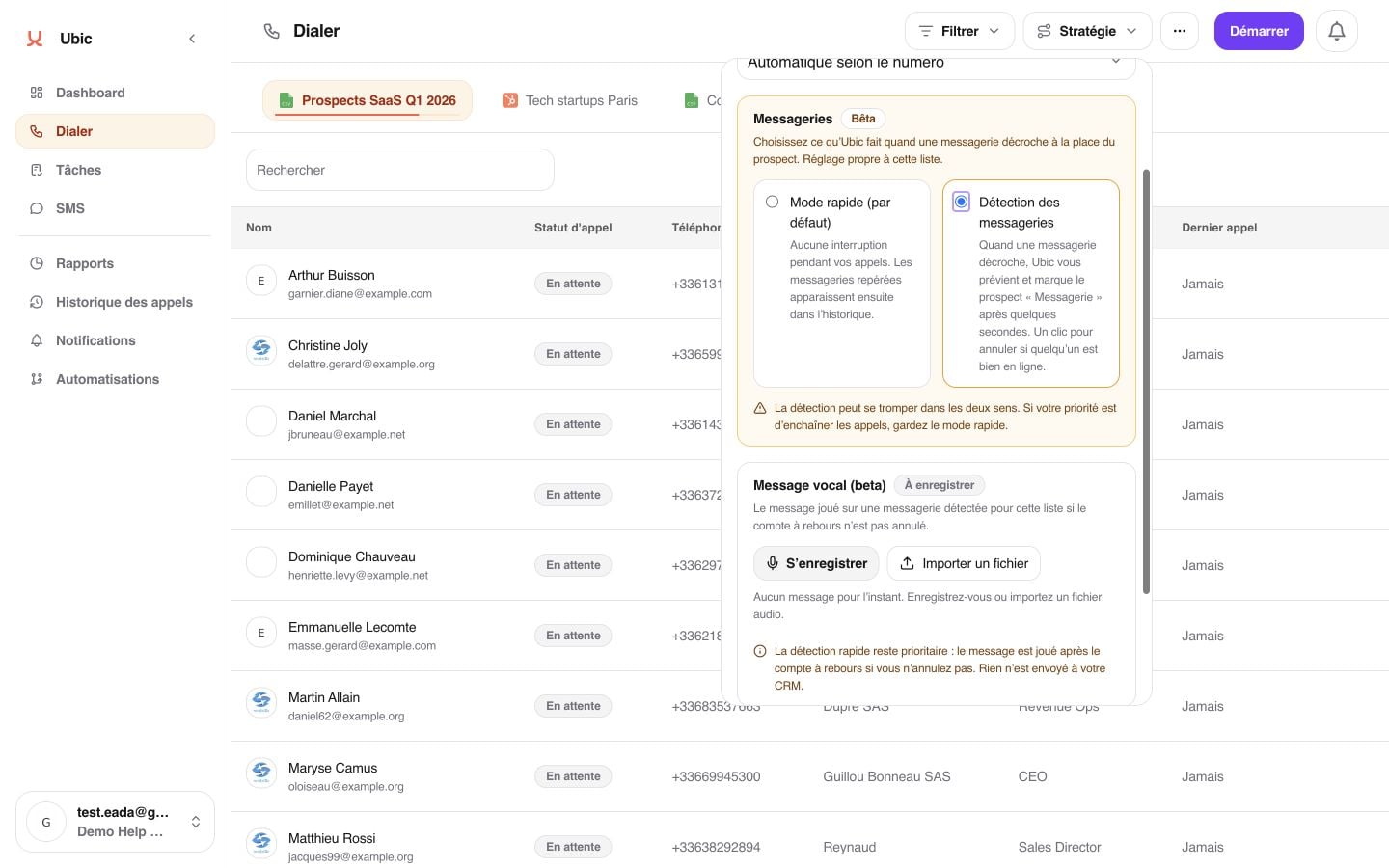
Under Voicemails, select Voicemail detection.
Under Voice message (beta), click Record yourself or import an MP3 or WAV file up to 5 MB.
Listen to the preview, then click Use this message.
Save the list strategy.
Only one message can be active per list. Recording or importing a new message replaces the previous one. Workspace members can configure this setting from the Dialer.
When Ubic receives a signal consistent with voicemail, the Voicemail detected banner appears with a 3-second countdown.
If a person is actually on the line, click Cancel. The call continues normally and automatic qualification does not run.
If you do not cancel, Ubic qualifies the lead as Voicemail.
If a voice message is configured and the lead is eligible, Ubic disconnects your side of the call and plays the message after a short delay. You can continue calling while the message is being delivered.
Without a configured message, Ubic simply ends the call after qualification.
Detection relies on a fast telephone signal. It may therefore produce a false positive or miss some voicemail systems. Use Cancel as soon as a person answers.
The setting only applies to the selected list. Switch back to Fast mode (default) to return immediately to standard calls without detection or voice-message delivery.
Ubic leaves no more than one voice message per lead. A busy or unanswered call does not use this allowance.
The automatic Voicemail qualification remains in Ubic and is not pushed as a lead status to your CRM. The call activity is still logged in the connected CRM.
Detected calls remain available in call history and reports.
If the banner does not appear, check that Voicemail detection is saved on the list. If browser recording fails, allow microphone access or import a file. If no message is delivered, check that the list shows Ready; the lead may already have received their one voice message, or the voicemail system may have ended the call before playback.
