You must have completed a call in the Dialer and have at least one lead status available. It may come from an Ubic setting, a CSV import, or a CRM list.
If any fields are required during the call, it helps to know what you need to enter in advance. This prevents validation from being blocked at the last moment.
A required field that has not been completed prevents saving until it is filled in.
During the call, select the Lead status in the Qualification section of the call window.
End the call when the conversation is over.
Complete any additional fields shown.
Complete the note. If a transcript is available and AI is enabled, you can use the magic wand to suggest a summary.
Create a task if a callback or follow-up is needed later.
Click Save to confirm the outcome.
The Save button becomes available after the call once a lead status is selected. Saving remains blocked if a required field is incomplete.
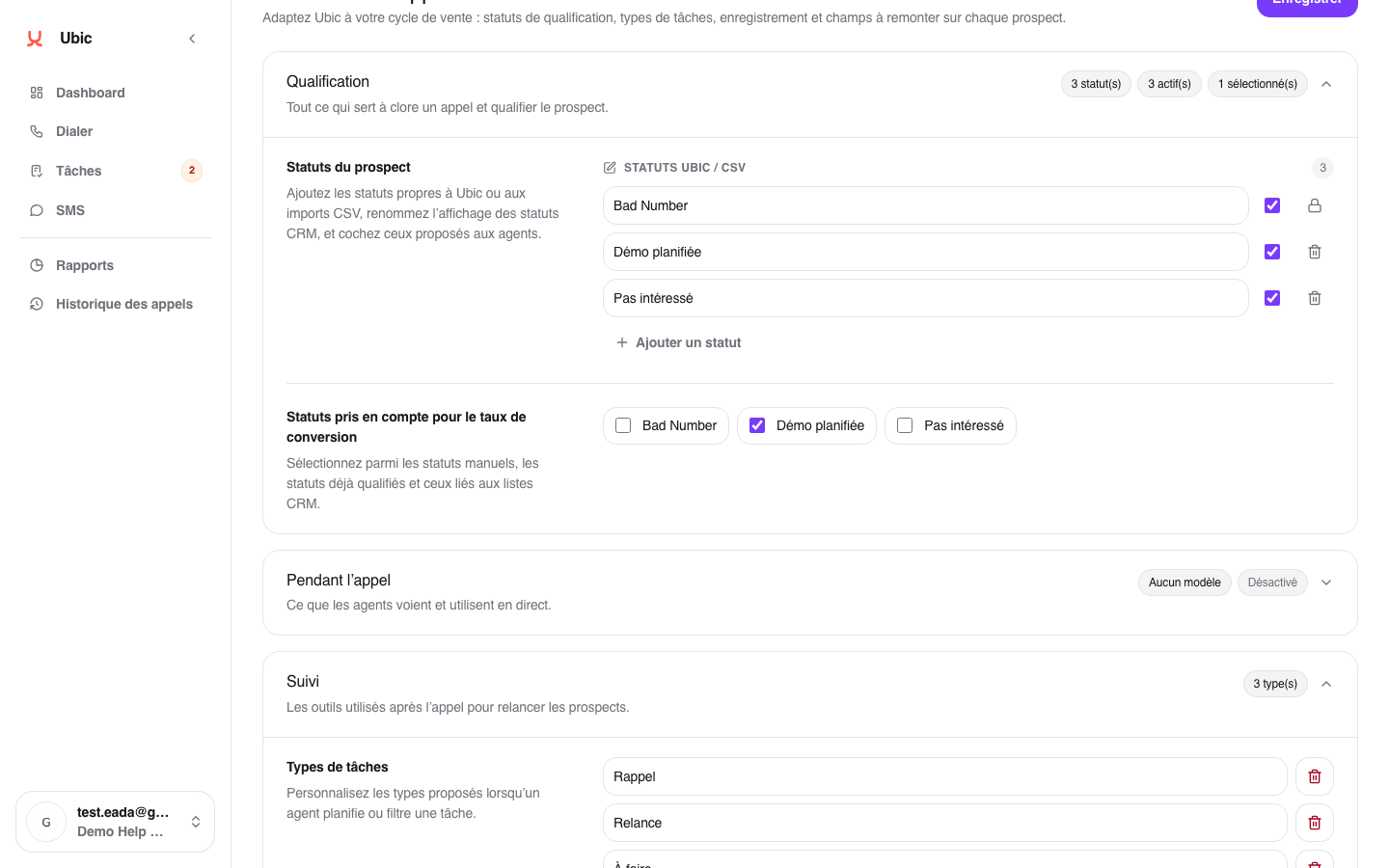
Manual statuses, task types, note templates, and visible fields are configured under Settings > Calls.
The AI note remains editable. It is only kept when you save the call qualification.
When the list comes from a CRM, the status selected after the call may also update the CRM field configured for that list. For User.com, this field may be an attribute or a tag group.
Call status and lead status serve different purposes. A lead becomes Frozen in the call status when the attempt does not result in a conversation, then they can receive a lead status such as Voicemail or Not interested to qualify the outcome.
The screenshot for this article shows this configuration page because it controls what agents see when they qualify a call.
