Check that the right list is selected, your microphone is allowed, and the phone indicator shows Ready to call. Only one session can be active at a time.
Open Dialer from the navigation.
Select the list to call.
Check the progress to see how many leads are still available.
Click Call.
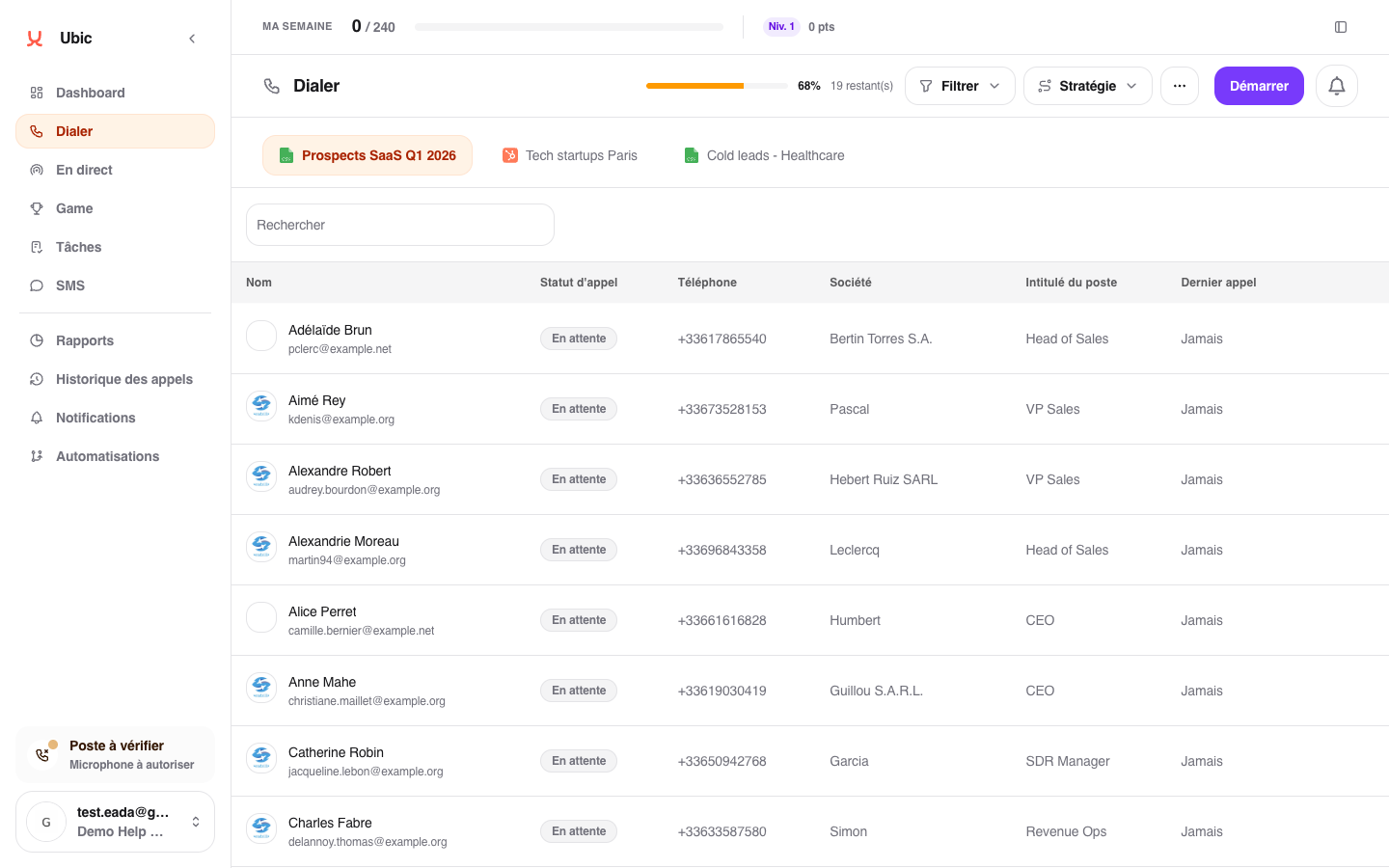
Ubic calls several leads at once, following the list strategy. The first one to pick up is put through to you: their record and useful context appear, and the other calls stop. Unreached leads remain in the process set by your team and may be offered again later.
Before starting, click Filter, enter a threshold under Outbound calls fewer than, then click Apply. Entering 5 shows and selects contacts with 0 to 4 outbound calls for the next session. This temporary filter does not change the list. Clear the threshold or use Reset to show all contacts again.
The threshold uses the same count as the Last call column: only outbound calls launched from Ubic are included.
If Free dialer is enabled for your workspace, it appears in the navigation. Paste a number with its country code, or enter a French number starting with 0, then click Call. Ubic uses your outbound number and keeps the call in your usual call history.
Finish your prospecting session before using it. Hang up cancels a ringing call or ends a conversation. If your connection is unstable, wait for confirmation that the call has ended before starting another one. Reloading the page retrieves the active call’s status without starting a new call.
If this entry is missing, contact Ubic support to check availability for your workspace.
Use Columns to choose whether company, job title and email appear in the table. Click Save to keep your selection for your lists in this workspace. Reset restores the original layout. Essential information remains visible.
Under Last call, the counter shows outbound calls launched from Ubic for this lead in this list. It excludes other lists, inbound calls, SMS and calls canceled before launch. Historical calls imported from another tool are not included.
A message may appear in the call window when Ubic detects a constant microphone signal, interrupted audio transmission or an unstable connection. Silence may simply mean you are listening: the call is not disconnected automatically.
If you are speaking but cannot be heard, check your headset's mute button and the microphone selected in your browser. For a connection warning, use a wired connection and pause downloads. After the call, open the phone diagnostics in the lower-left corner to test your microphone and sound.
Finish the call or session already in progress.
Open the phone diagnostics in the lower-left corner if the service does not show Ready to call.
If the list is not assigned to you, ask an administrator to give you access.
If the CRM list was just changed, use Reload before trying again.
