
Assign a list
Open Settings > Team & lists > List assignment.
Find the list and check its source.
Drag it onto the responsible sales rep. For several lists, select them and click Assign on their card.
Changes are saved automatically.
You can also drag an assigned list directly from one member to another. A list has one owner; a member can own several lists. Use Cancel to undo the latest assignment.
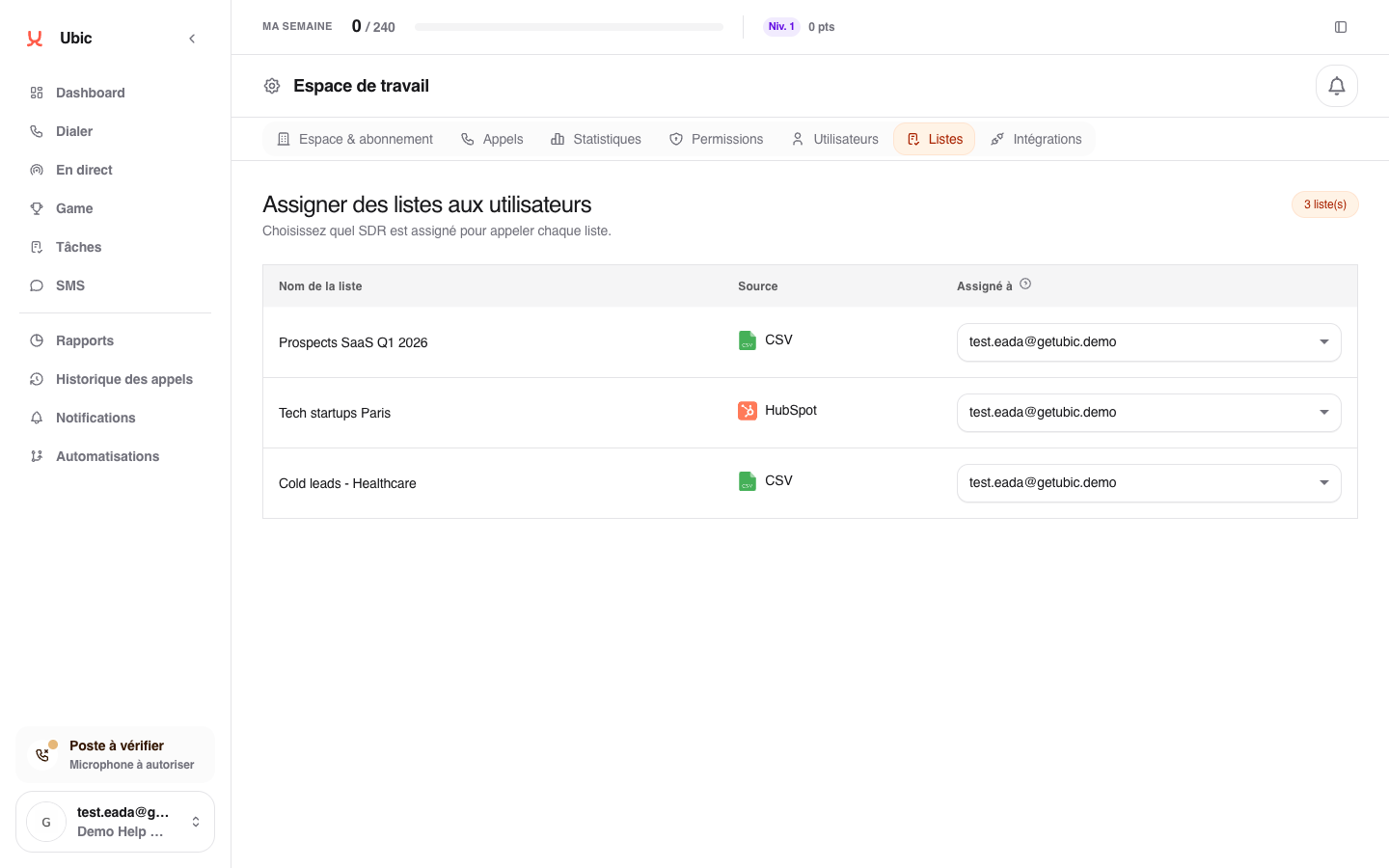
The list then appears on their calling page and its results count toward their activity. An unassigned list can be configured by an administrator, but nobody can start it.
When the team changes
Reassign the lists of someone leaving the team before removing their access. If the new owner does not have the same calling number, Ubic selects one of their numbers when possible.