
Start from the guided flow
For your first list, open Get started > Follow up. You can choose three delays and enable follow-ups directly if this list has no existing rule. Only future pauses without a qualification are included. To include prospects already on hold, add other conditions or manage several lists, use the settings below.
Create the automation
Open Automations, then click New.
Give it a clear name, such as “Cold list follow-up.”
Choose the situation that enters a lead into the journey, usually the On hold call status.
Add another situation only if it should trigger the same journey.
Click Create automation.
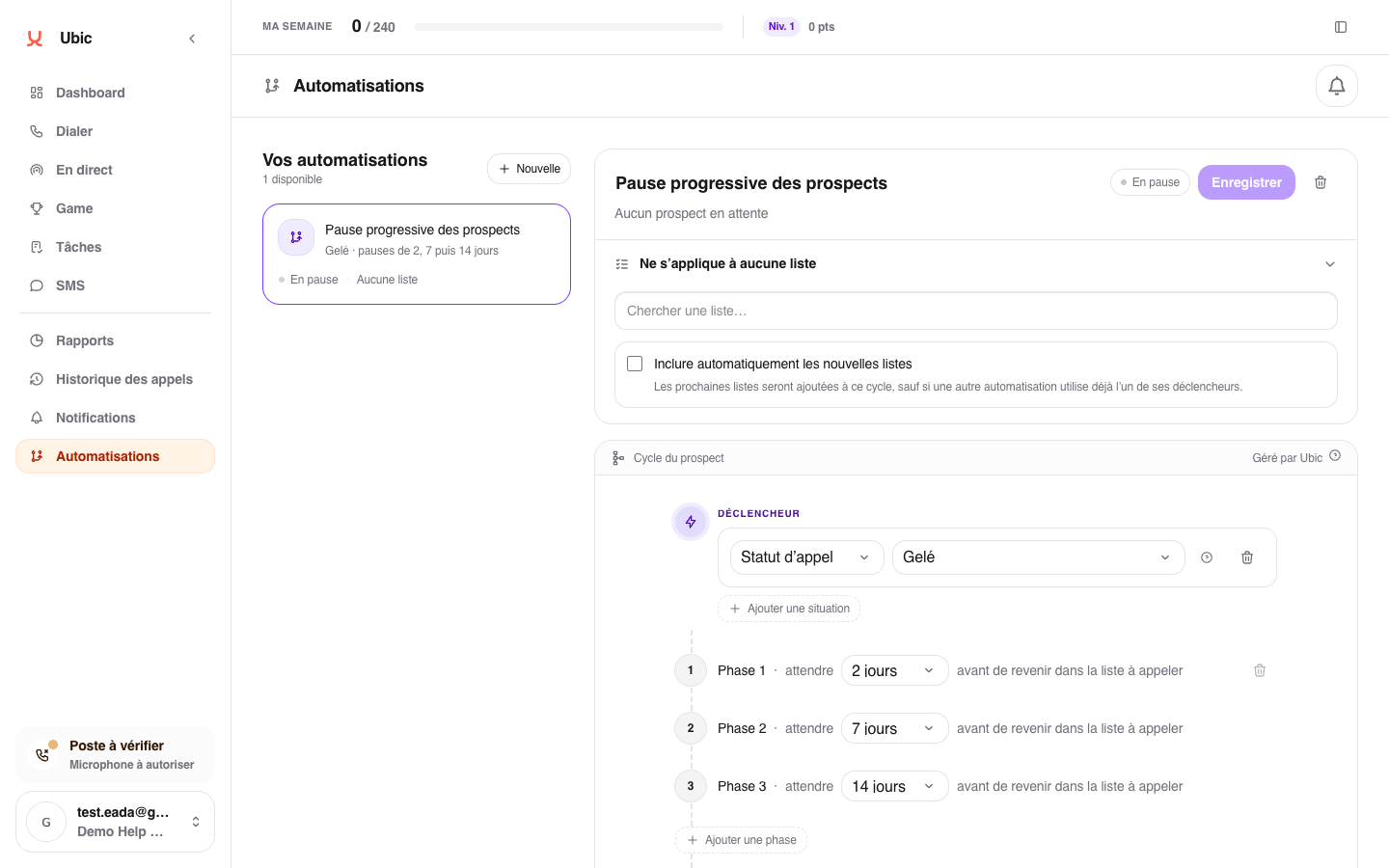
Choose lists and delays
Under Applies to…, select the affected lists.
Decide whether leads that are already on hold should enter immediately.
Enable automatic inclusion if future lists should follow the same rule.
In the first phase, set how long the lead should remain paused after first entering On hold.
Click Add a phase to set a different delay after the lead enters On hold for the second time, then repeat for each additional delay.
Under Final action, choose whether to repeat the last delay or complete the journey and remove the lead from the automation.
Click Save.
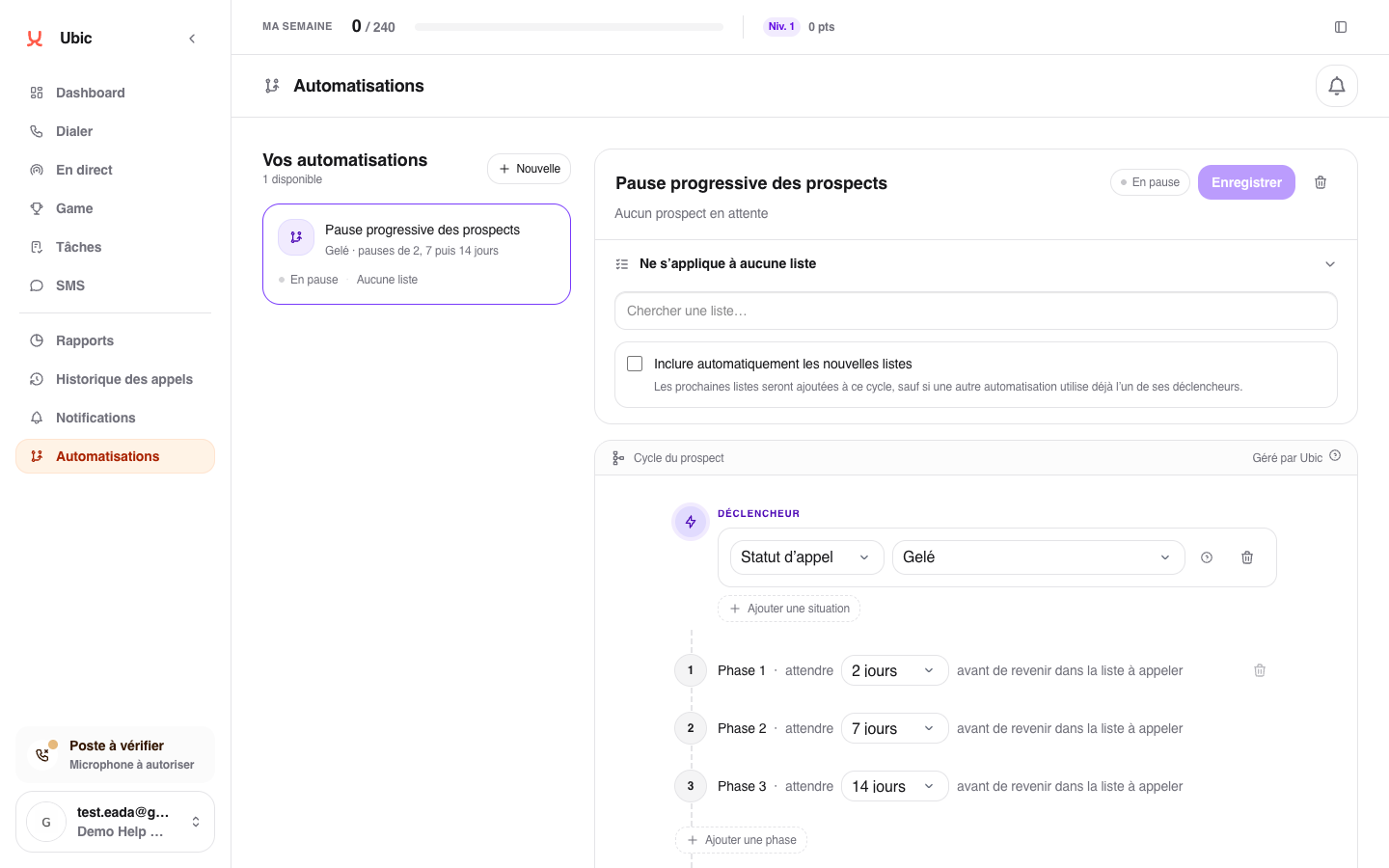
The same list cannot follow two automations with the same trigger. Removing a list exits leads that are still waiting so they do not return unexpectedly.