
Connect the bot and select a channel
Prepare a Slack bot installed in your workspace with the chat:write scope, then invite it to the channel that will receive notifications. Slack app creation guide.
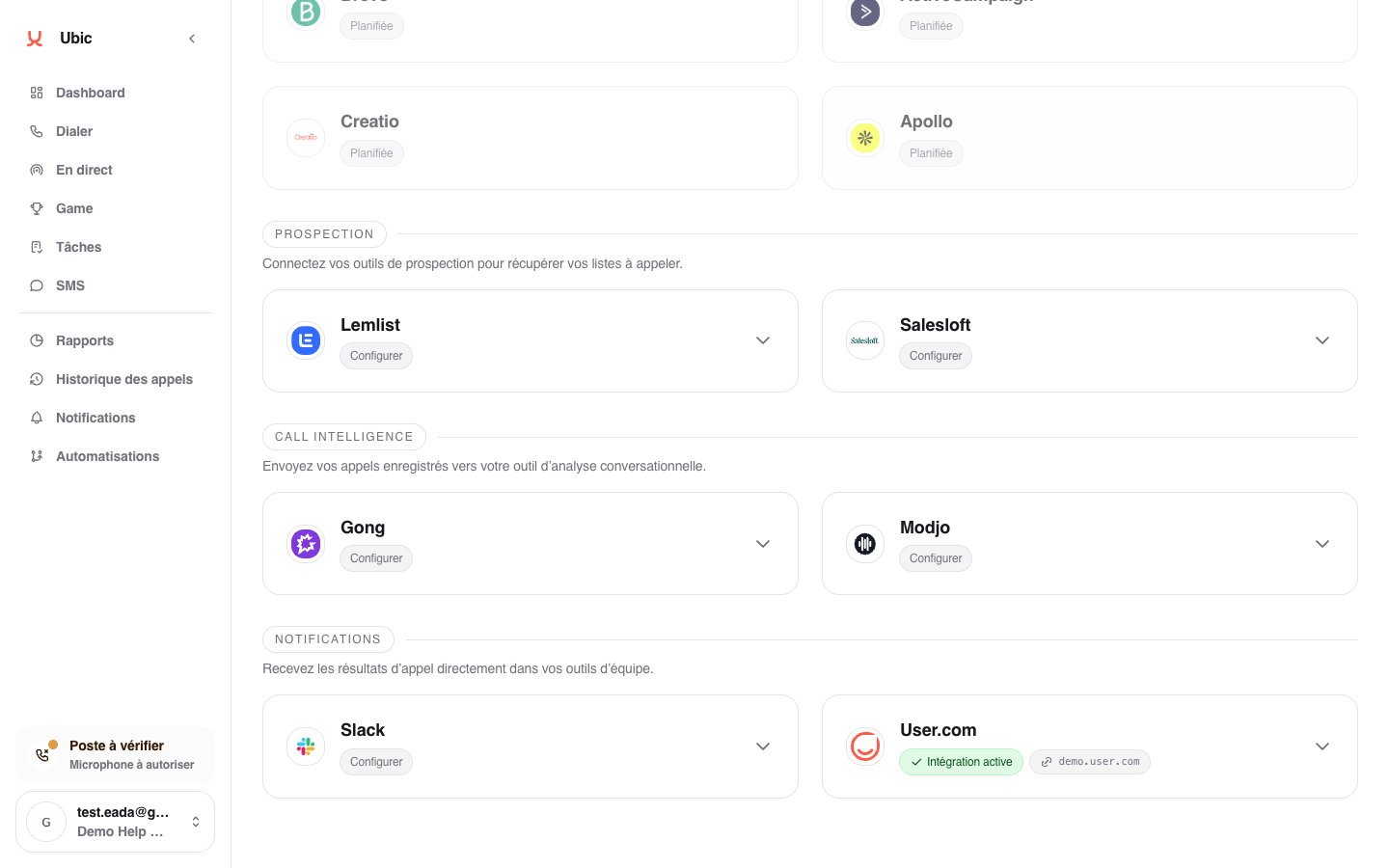
Open Settings > Integrations > Slack.
Enter the Slack bot token.
In Slack channel, enter the channel name, such as #sales-demo, or its ID.
Click Save.
Click Configure to choose notifications.
Ubic does not read message history. The saved token is not displayed again. To replace it, enter the new token in the empty field and click Save. Keep the channel value to continue using it; notification settings are preserved.
Choose notifications
Under Configure, select the Statuses to notify. Enable Include agent note to send the note saved after the call, or Include Ubic link to add a button to the lead. Click Save.
Uncheck statuses that do not require your team’s attention to keep the channel readable.
Troubleshooting
Saving fails: check that the token belongs to the bot installed in your Slack workspace and that Slack channel is filled in.
A notification is missing: under Configure, check that the status is selected and the channel is correct. In Slack, check that the bot is a member of that channel and has the chat:write scope.
Disconnect Slack stops notifications from this Ubic workspace and clears its notification settings. The app remains installed in Slack; remove it from Slack to also remove that installation.