
Save the follow-up
Under Lead status, choose the situation that matches the conversation: demo booked, call back, not interested, wrong number, or one of your team's choices.
Add a short note with what was agreed: the need raised, an objection, a commitment, or the next step.
Fill in the fields shown below the note with information gathered during the conversation, such as budget or callback date. Fields marked as required must be completed.
If something needs to happen later, create a task with a date.
Click Save and continue to move to the next lead.
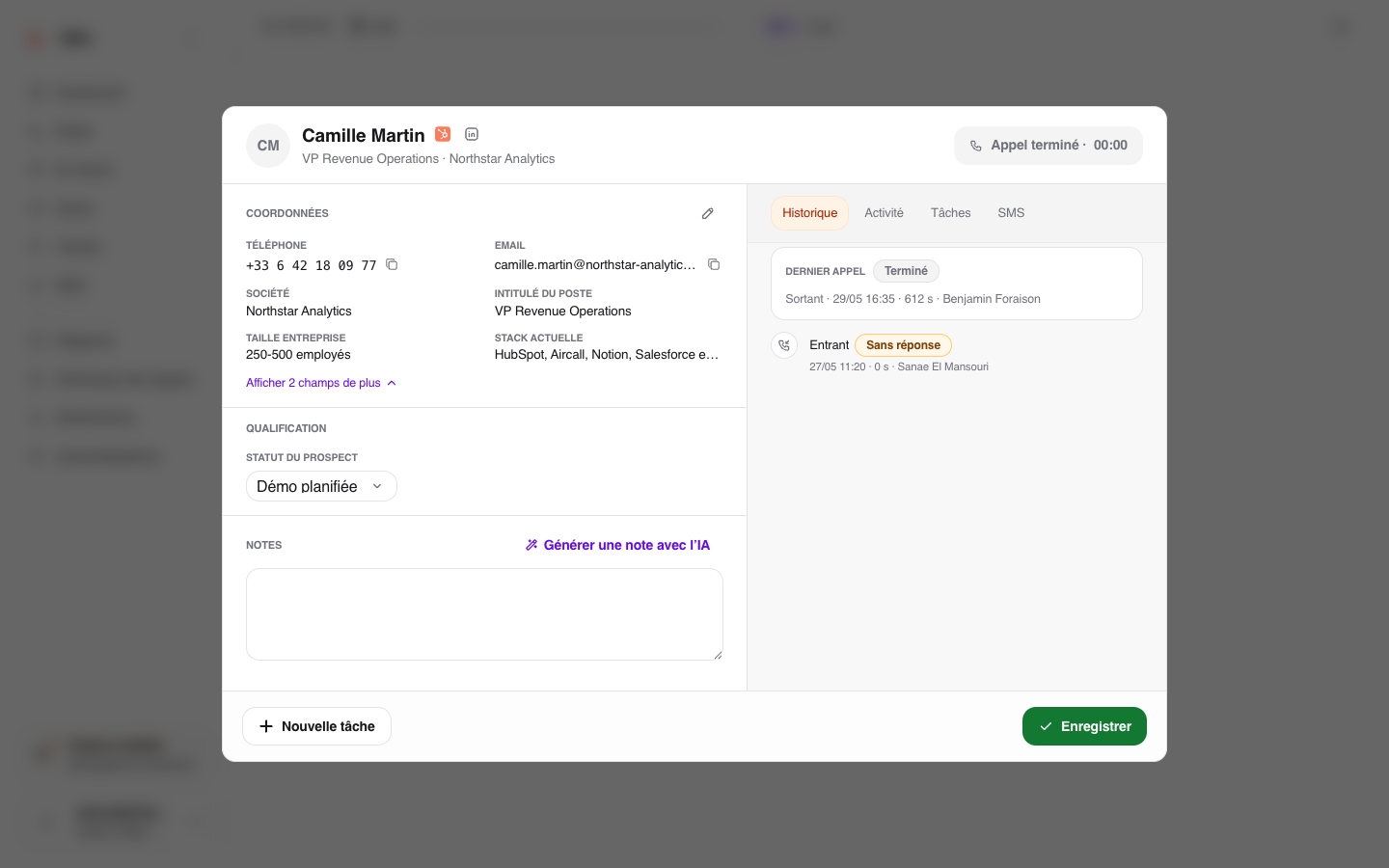
The lead status describes the sales relationship. It is different from the technical call status, which Ubic manages automatically depending on whether the line answered, rang, or failed.
Your administrator can make a date field optional for certain statuses. With those statuses, you can clear the date and save the qualification. An existing date stays in place until you clear it.
Statuses supplied by a CRM show the connection’s logo in the menu and next to the selected status. CRM statuses available for your list appear first, followed by statuses created in Ubic. All active statuses in your workspace remain visible; choices that cannot be used on this list are grayed out. Hover over them to see why. The explanation is also included in their accessible label for screen readers. For example, a CRM status requires a lead linked to that CRM and cannot be selected on a CSV list. Statuses created in Ubic remain available according to your team’s settings.
What is shared
Save and continue saves your qualification in Ubic and closes the lead details. The note, task, and new status remain available in Ubic. For CRM lists, information covered by the integration settings is then synced while you continue calling.
If you configure follow-up for the team, review the administrator settings used after a call to choose the statuses, tasks, and options available to sales reps.
The magic wand can suggest a note from the transcript. Always review it before saving.
Troubleshooting
If a CRM sync failed notification appears, your qualification is still saved in Ubic. Open Notifications and select the error. If Retry is available, click it to try the sync again. You do not need to qualify the call again.
If the notification says the CRM did not confirm the activity, first check whether the note or call activity already appears in the CRM. Retry only if it is missing, to avoid creating a duplicate.
If the error returns after retrying, ask your administrator to check the CRM connection and permissions. You can continue saving qualifications in Ubic while this is checked.
If the notification reports a changed CRM destination or settings, ask your administrator to check the connection and the list mappings. This sync cannot be retried to the new destination, so Retry is not offered.
If a Note not synced to the CRM notification appears for ActiveCampaign, Apollo, or Freshsales, the note remains in Ubic. This connector cannot send that note to the CRM yet. Other statuses and fields covered by the integration settings are processed separately; this notification does not offer Retry. Ubic notifies you once per connector in your workspace, even if you qualify more calls with notes.