The page shows your own tasks by default. Workspace administrators can switch from My tasks to Team tasks, then select a person in the Assignee filter. Everyone shows tasks assigned across the current workspace.
Use To do, Done, or All to choose which statuses to show. The Type filter and search let you narrow the list.
Each task shows the contact and, when available, their company, list, and phone number. Manually created contacts are labelled Manual contacts. Click the contact’s name to open their profile; use Edit to find the task’s note and due date.
Choose Kanban to group tasks into three columns:
Overdue: tasks scheduled before today; start with these.
Today: what you planned to handle today.
Later: upcoming follow-ups.
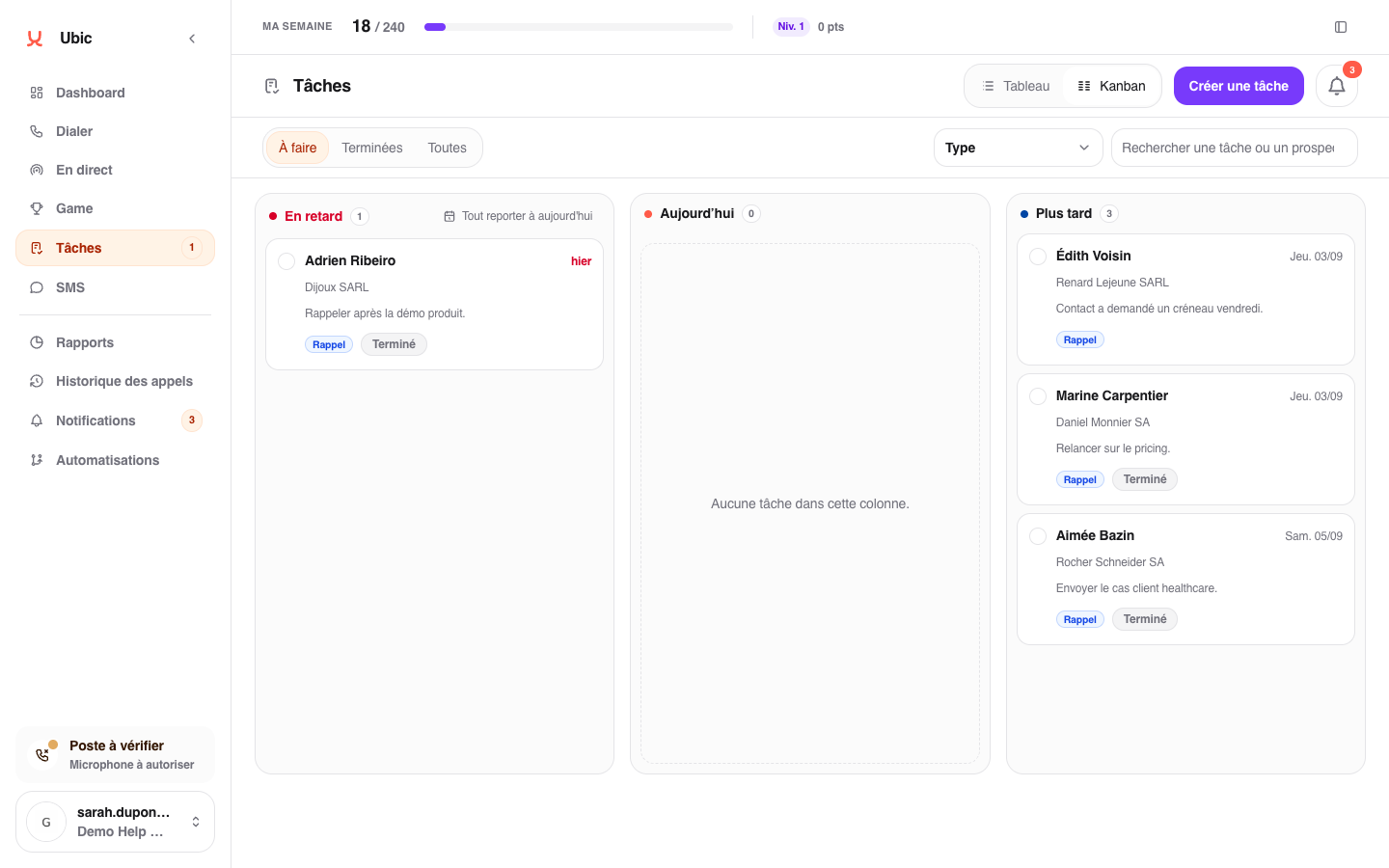
Drag a task to Today to put it back into today’s plan. Moving it to Later lets you choose a new day. The task’s time stays the same.
In the Table view, tasks are grouped by due date and displayed in pages of 40. The counters at the top filter tasks that are overdue, due today, upcoming, or completed in the last seven days.
Each Kanban column displays up to 50 tasks. When there are more, the counter shows 50+ and Open table view opens the Table. Browse the pages or narrow the search and filters.
In the Table, the Overdue group may be collapsed. Click Show the … other overdue tasks to expand the rows on the current page.
Also check the selected status and, in the team view, the Assignee filter. If Team tasks is not shown, your access is limited to your own tasks: this view is reserved for workspace administrators.
An administrator can enable Send tasks created in Ubic to HubSpot under Settings > Integrations > HubSpot > Configure > Tasks. Export is off by default. It only applies to new tasks linked to a contact from a HubSpot list; existing tasks and CSV or manual contacts stay in Ubic.
The contact must have the same email address or phone number in both tools. The assignee must belong to the workspace and have a HubSpot account with the same email address as in Ubic. HubSpot owner access (`crm.objects.owners.read`) is required in addition to contact permissions. If these details do not match, the task remains saved in Ubic with an explanation.
Tasks are sent in the background, normally after the next synchronization pass, which runs every minute. A task shows Waiting to send, Synced with HubSpot or Needs attention. Click Refresh to reload its status. Changes to the note, type and due date, along with Done and Reopen, are then sent to HubSpot. Placing a call does not automatically complete the task.
Changes made directly in HubSpot do not appear in Ubic. If a remote task has changed, Ubic pauses export to avoid overwriting those changes. Use View HubSpot contact to find it. For temporary failures, Ubic retries automatically until three attempts fail, then shows Needs attention. Fix the stated cause or restore permissions, then click Try again if offered. If the task shows Check creation, check HubSpot first and contact Ubic support to link the existing task or authorize a new creation after confirming none was created. Ubic never automatically repeats an unconfirmed creation.
Canceling a task in Ubic leaves its HubSpot task unchanged. Tasks linked to HubSpot cannot be deleted from Ubic; manage their deletion in HubSpot. Disabling export preserves tasks and their links without importing or deleting data.
