
Watch the 28-second AI brief demo. This example uses fictional data.
Add the commercial context
Before starting the calling session, select the list you want to prepare in Dialer.
Open Actions (the three-dot menu), then click Configure AI brief.
In Commercial context, explain what you sell, who you sell to, and what you want to achieve during the call.
Click Save.
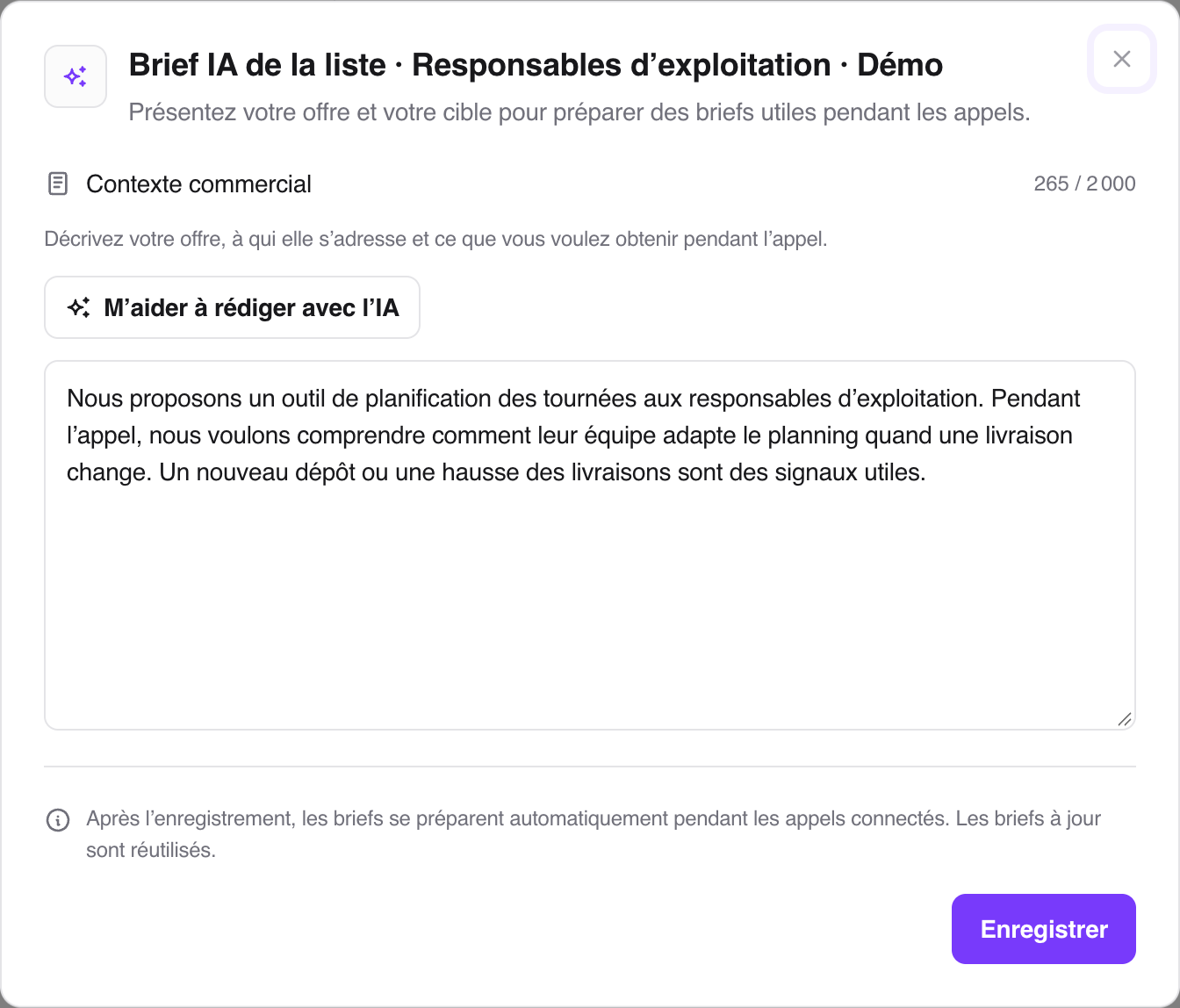
For example: “We sell a prospecting tool to sales leaders and SDR managers. Our goal is to understand how their team prepares calls and suggest a demo. Present possible needs as questions to validate.”
The context can contain up to 2,000 characters. Saving it automatically enables briefs for this list; there is no extra switch to turn on. Other lists stay unchanged.
Use the writing assistant
Click Help me write with AI, then fill in What you sell, Who you sell to, and Call objective. Signals to look for is optional. Click Draft the context, review and adjust the text, then Save.
If a context already exists, it stays unchanged until you confirm Replace with this draft. The assistant writes the context; it does not research the prospects in the list.
What sales reps see
New research starts during a connected call with the prospect. The brief appears in Key information without interrupting the conversation. It provides a calling angle and information about the prospect or company, with sources. Timing depends on the research; the sales rep can keep talking while it is being prepared.
An up-to-date brief is reused. An unanswered call does not start new research. Identified voicemail is excluded, although detection is not perfect. The brief then stays available in the prospect details. For the sales rep’s workflow, read Use Key information during a call.
Troubleshooting
Configure AI brief is missing: stop any calling session that is still running. Also check that you are a team administrator and that briefs are available under your team’s plan.
The context will not save: enter a non-empty text of no more than 2,000 characters, then click Save.
The assistant cannot write a draft: a limit or service interruption can stop drafting. You can write directly in Commercial context, then Save.
No new brief is being prepared: open Settings > Billing. An empty balance and an inactive subscription require different actions; Track and top up AI brief credits explains how to resolve them. If preparation is disabled for the workspace, contact Ubic support: saving the context or buying a pack does not enable it.