
Choose between information and an action
Create a field when the team needs to view or complete data about the lead.
Create an Action button when they only need to open a service, such as a booking page.
Create a field or action button
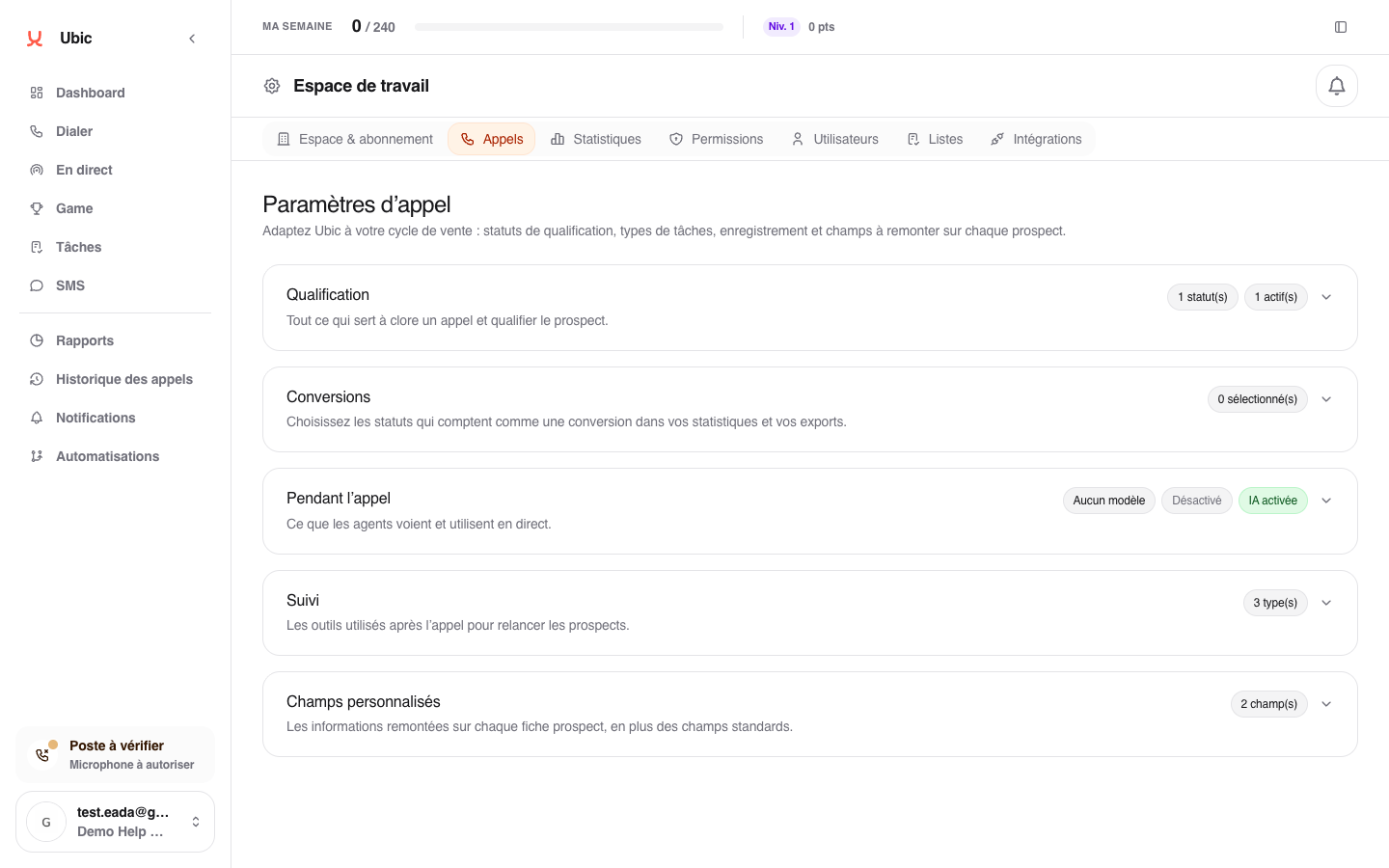
Open Settings > Calls > Custom fields.
Click Add a field and give it a name sales reps will understand.
Choose its format: text, link, yes/no, choice list, date, or action button.
Decide whether it appears during calls, on the lead record, or in both places.
For a choice list, add one option for each answer available to sales reps. For an action button, enter the https:// address of the service to open.
Make a field required only when a call genuinely cannot be saved without that information.
Save.
To retrieve or send this information in a CSV or CRM, match it with the correct column when configuring each list.
If the field does not appear
Open the field under Settings > Calls > Custom fields and check that Show during the call or Show on the lead record is enabled. If the field comes from a CSV or CRM, also check that it is mapped to the correct column in the list settings.
A field that is already in use cannot be deleted while its values or mapping are still present.