
1. Before you start
An active User.com account.
Your User.com workspace domain, for example `myapp.user.com`.
An API key with access to segments, users, attributes, and tags.
Create the key from Settings > App Settings > Advanced > Public API in User.com. Choose read and write access if Ubic needs to update an attribute or tags after a call.
2. Connect User.com
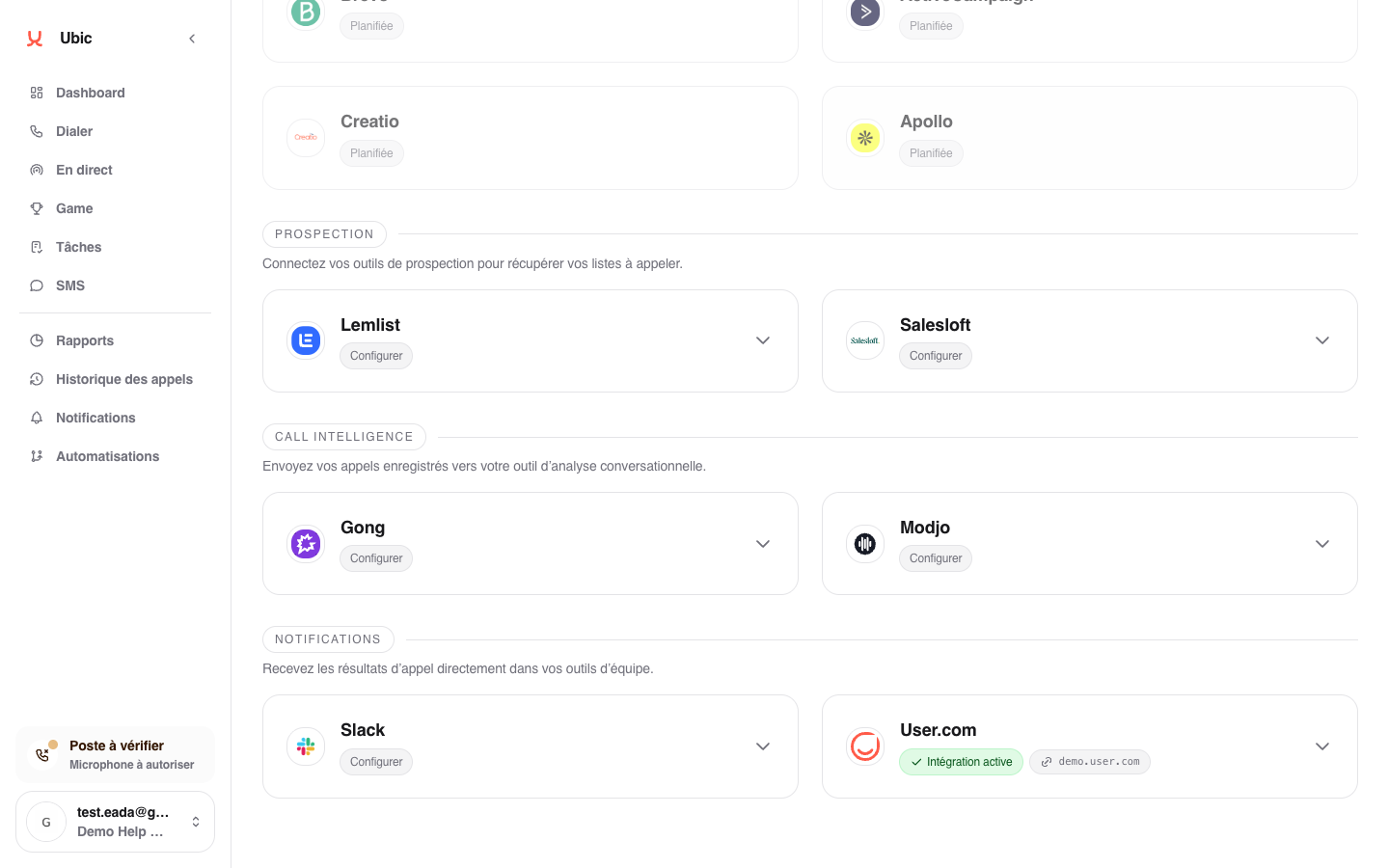
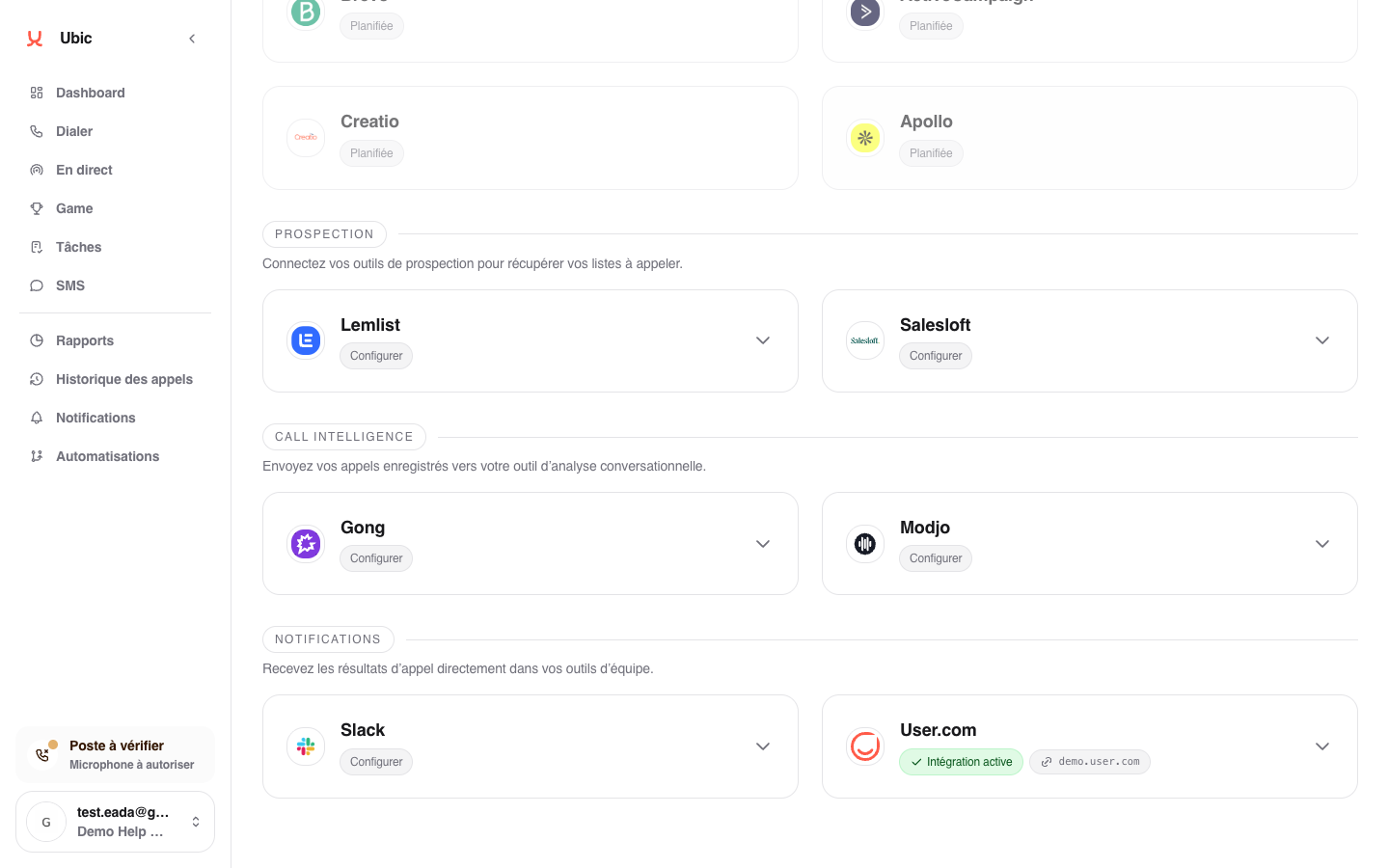
Open Settings > Integrations > User.com in Ubic.
Enter the User.com domain into User.com domain.
Paste the API key into User.com API key.
Click Save.
User.com segments are retrieved automatically after connection.
3. What is synced
User.com segments become list sources. Users in a segment are imported with their fields, including email, phone, and segmentation properties, to provide call context.
When creating a list from a User.com segment, Ubic asks how to update the status after a call:
User.com attribute: select the attribute to update. For a fixed-choice attribute, Ubic automatically retrieves the qualifications configured in User.com, shows them to sales reps, and sends the selected value after the call. If User.com does not return those values, enter the exact expected values, one per line.
User.com tags: Ubic uses the selected tags as available statuses. When a sales rep qualifies a lead, Ubic adds the tag that matches the new status.
In the SDR assignment step, the User.com agent field is optional. Leave it blank when the User.com list or segment is already dedicated to one SDR and the Ubic list is assigned to that person. Select an agent only when you want to limit the import to prospects assigned to that agent in User.com.
Call notes can also be added to User.com when the integration finds the matching user.
The Ubic Inbound Call and Ubic Outbound Call events sent to User.com also include the Ubic lead record ID in `ubic_lead_id`. Your Make scenario can use this ID to create a task on that record in Ubic. It is separate from the User.com contact ID. The field is included in new events sent after this change; earlier events are not updated.
To create the task from Make, your administrator must prepare a Ubic API key with permission to create tasks.
Notes
User.com segments are dynamic. Each time a Ubic list is created, the segment is reevaluated and users who match at the time of import are included.
The User.com domain and API key are separate fields. Both are required for the connection to work.
When using User.com tags, the selected tags become the reference values. Labels displayed in Ubic can then be renamed under Settings > Calls without changing the tag name in User.com.
The same rule applies to User.com attribute mode: you can rename the label displayed in Ubic, while the value sent to User.com remains the one entered when configuring the list.
If the attribute has fixed choices and the chosen status is not one of them, that status stays in Ubic. Notes and other qualification changes continue to sync. Workspace admins receive one notice for that status and list; add the value in User.com to sync it. Free-text attributes continue to accept statuses as before.