Create a data field when:
several leads need the same structured information
the information has no equivalent in Ubic's standard fields
the information needs to be completed in Ubic or synchronized with an external source
Choose Action button when agents need access to the same service from a lead profile or during a call. For example, they can open a meeting booking page, an internal form, or another business tool.
An action does not save a value on the lead. It is not mapped or sent to the CRM.
Open Workspace Settings > Calls > Custom fields.
Click Add field.
Enter a clear name, such as Industry or Book a meeting.
Select the format used in Ubic: Text, Link, Checkbox (Yes / No), Choice list, Date, or Action button.
For an Action button, enter the full https:// link that should open.
Choose where to display the field or action: during calls, on the lead profile, or in both places.
For a Choice list, add the choices available in Ubic. These are used for CSV imports and agent entry.
Click Save.
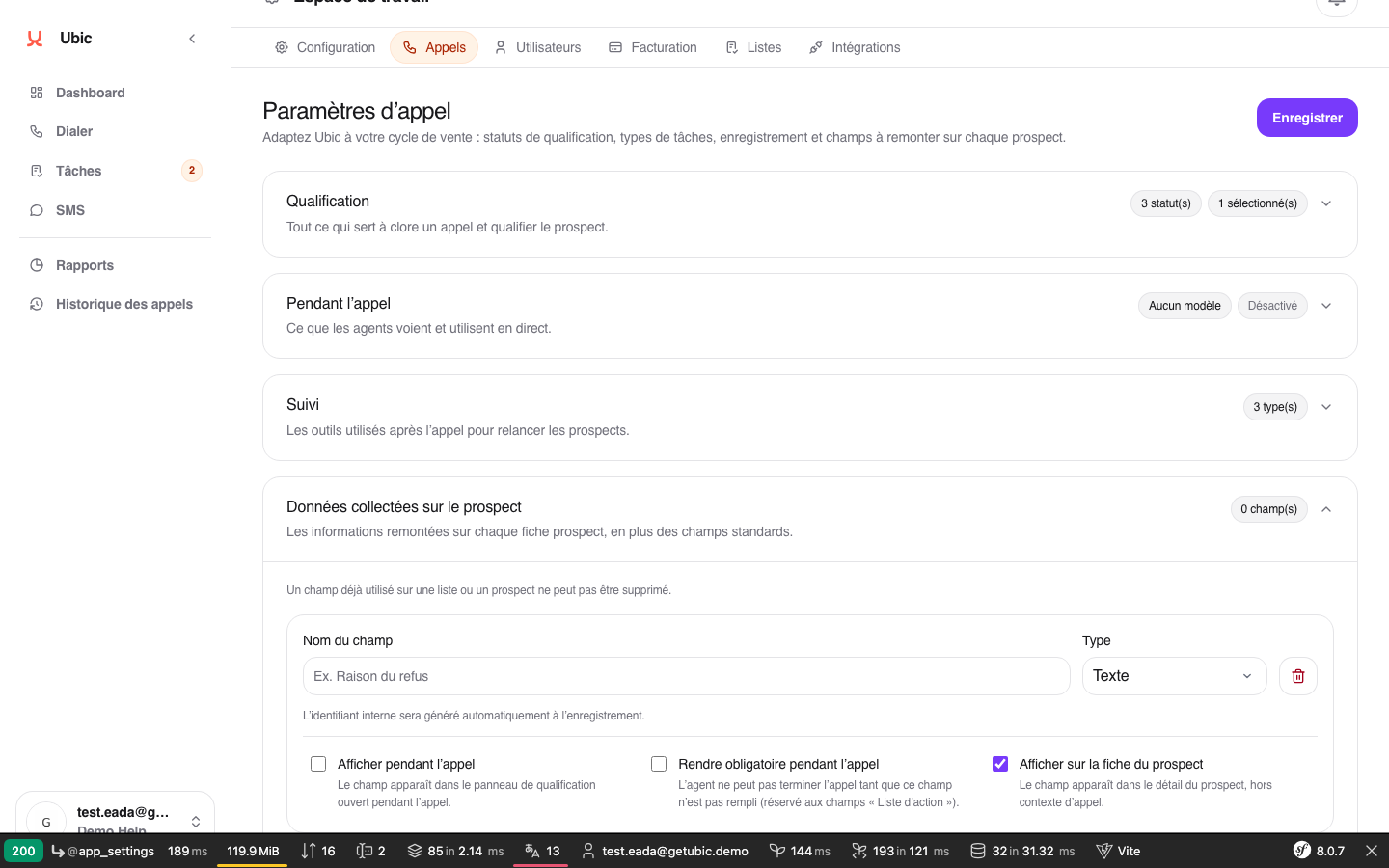
Based on its visibility settings, the item appears in the call window, on the lead profile, or in both places.
A data field does not select its own source. When creating or configuring each list, connect it to the matching CRM or CSV column. If the CRM allows writes to that column, Ubic can also send back changes saved by an agent.
For a Choice list, choices added in settings remain available. When the mapped CRM column has its own options, Ubic adds them automatically. A Date is saved without a time and uses the date picker. A checked Checkbox means Yes; an unchecked one means No.
Agents can use an Action button from the lead profile or during a call to open the linked service within Ubic without losing the lead context.
If the button does not appear, check its visibility under Workspace Settings > Calls > Custom fields.
If the link does not open, make sure it is complete and starts with https://. Some services may also restrict embedded display.
A field required during calls blocks result saving until a value is entered. If information is not imported from the CRM or CSV, check the mapping for that list. A data field already in use cannot be deleted until its values or mapping have been removed.
