A custom field or action can appear in two places:
During the call: in the call window.
On the lead profile: in the detail tab, after the standard information.
These options are independent. The same item can appear only during calls, only on the lead profile, or in both places.
Only admins can create or edit custom fields and actions.
Open Settings > Calls.
Go to Custom fields.
Click Add field.
Enter a label, select its format in Ubic, and configure visibility.
For a Choice list, add the choices used in Ubic or during a CSV import.
For an Action button, add the full https:// link.
Save the field.
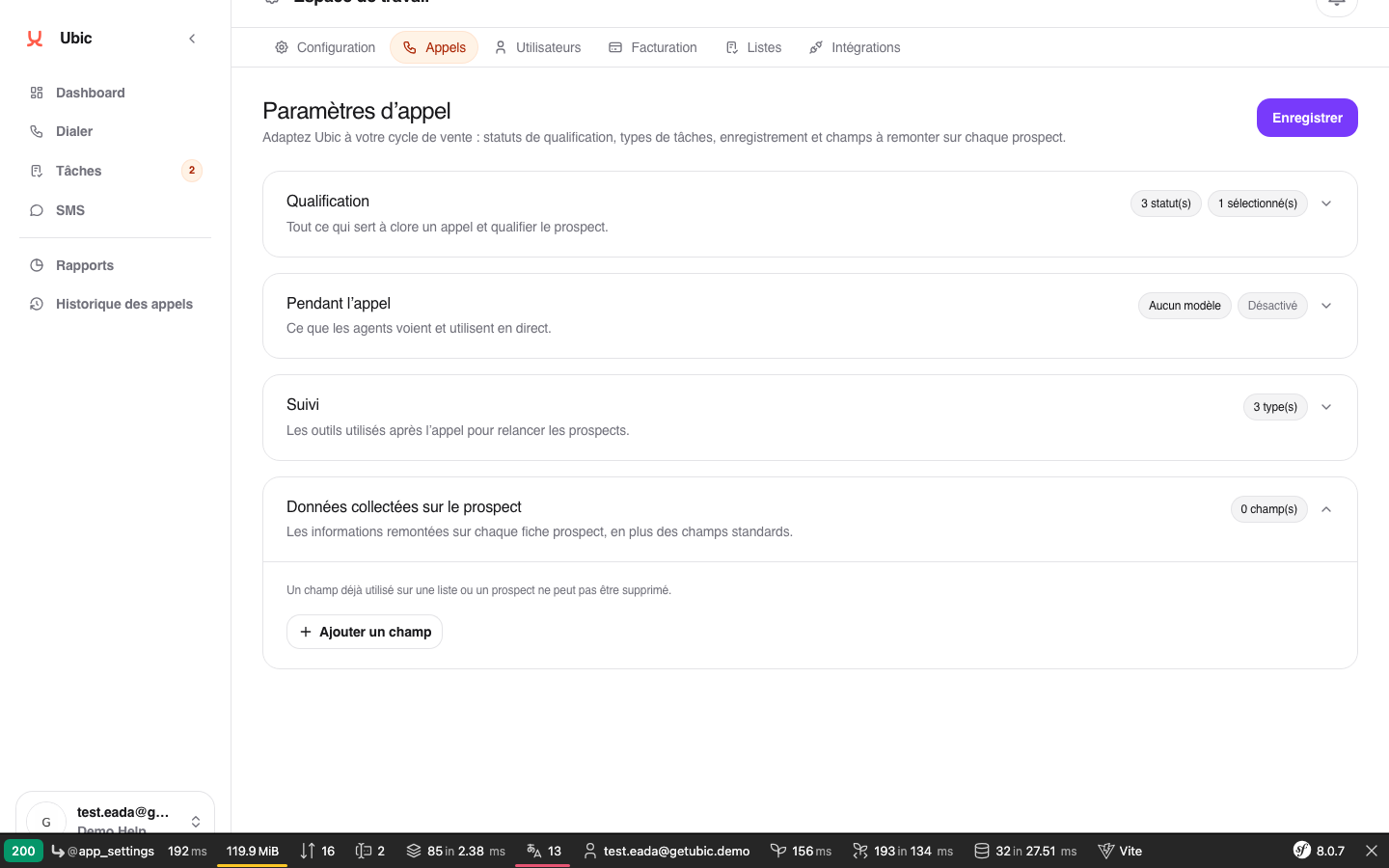
Fields configured to appear during calls are shown while you are speaking with the lead. They can be marked as required to prevent the call from being saved until a value is entered.
Fields shown on the lead profile can be edited from the lead's detail tab when the admin allows agent editing.
A Checkbox stores Yes or No. A Choice list includes choices defined in Ubic and options retrieved from the mapped CRM. A Date opens a date picker and does not include a time.
Each list has its own mapping. A custom field such as Lead stage therefore remains separate from Ubic's built-in Lead status and must be connected to the matching CRM or CSV column on every relevant list.
An Action button appears wherever the admin chose to display it. It opens the linked service within Ubic and does not change any lead data.
An action is not a CRM field: it is not available in list mapping and is not sent to the data source.
If an action does not appear, ask an admin to check its visibility. If it does not open, make sure its link starts with https://.
A data field cannot be deleted while its values or mapping are still in use. A custom action can be removed without changing lead data.
