
1. Before you start
You need a BoondManager account with REST API access enabled.
Depending on your permissions, retrieve these three credentials from the BoondManager admin area or security settings:
The BoondManager user token for the account used to read contacts.
The BoondManager client token for the client account.
The BoondManager client key for the client account.
The account must have access to contact saved searches and to the contacts you want to import into Ubic.
2. Connect BoondManager
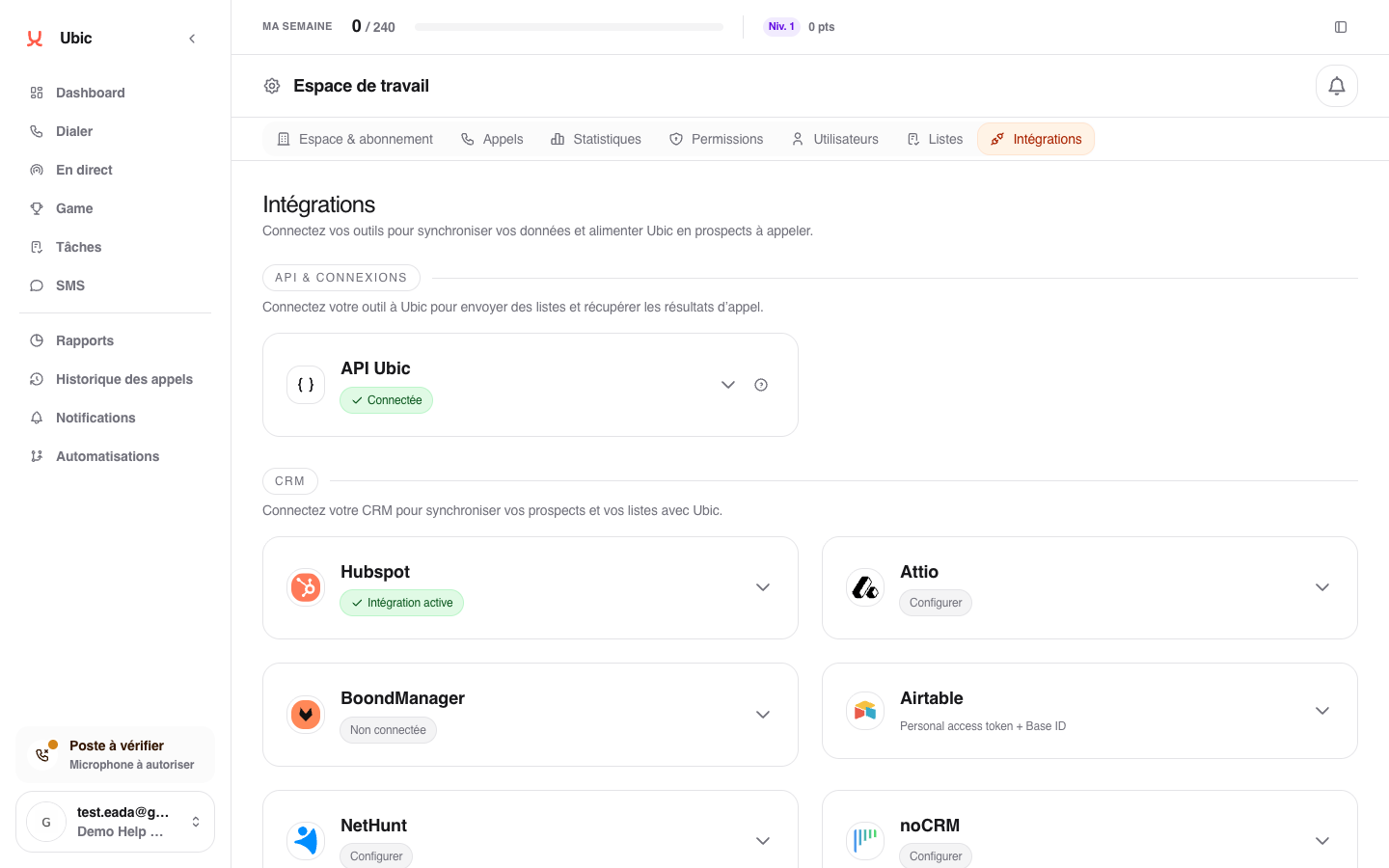
Open Settings > Integrations in Ubic.
On the BoondManager card, enter the BoondManager user token, BoondManager client token, and BoondManager client key.
Click Save.
Ubic checks the tokens with BoondManager before enabling the integration.
3. Import a saved search
Open the Create list dialog in Ubic.
Choose BoondManager as the source.
Select a contact saved search.
Check the mapping, especially the phone field.
Create the list.
You can then reload the list from Ubic. Ubic reads the saved search again in BoondManager and imports the contacts that still match its filters.
Notes
BoondManager is currently import-only in Ubic. Lead statuses, notes, and call activities are not pushed to BoondManager.
If a saved search does not appear, check that it contains contacts and that the account linked to the user token has permission to read it.