An Airtable account with access to the base you want to connect.
The Airtable Base ID.
A Personal Access Token with access to this base.
The token must allow Ubic to read the base schema, read records, and update records if the status needs to be synced after a call:
`schema.bases:read`
`data.records:read`
`data.records:write`
Also add `schema.bases:write` if you want Ubic to create the call history table automatically. This scope is not required when you select a compatible table that already exists in the base.
Tokens are created in the Airtable Developer Hub. Airtable guide: create a Personal Access Token.
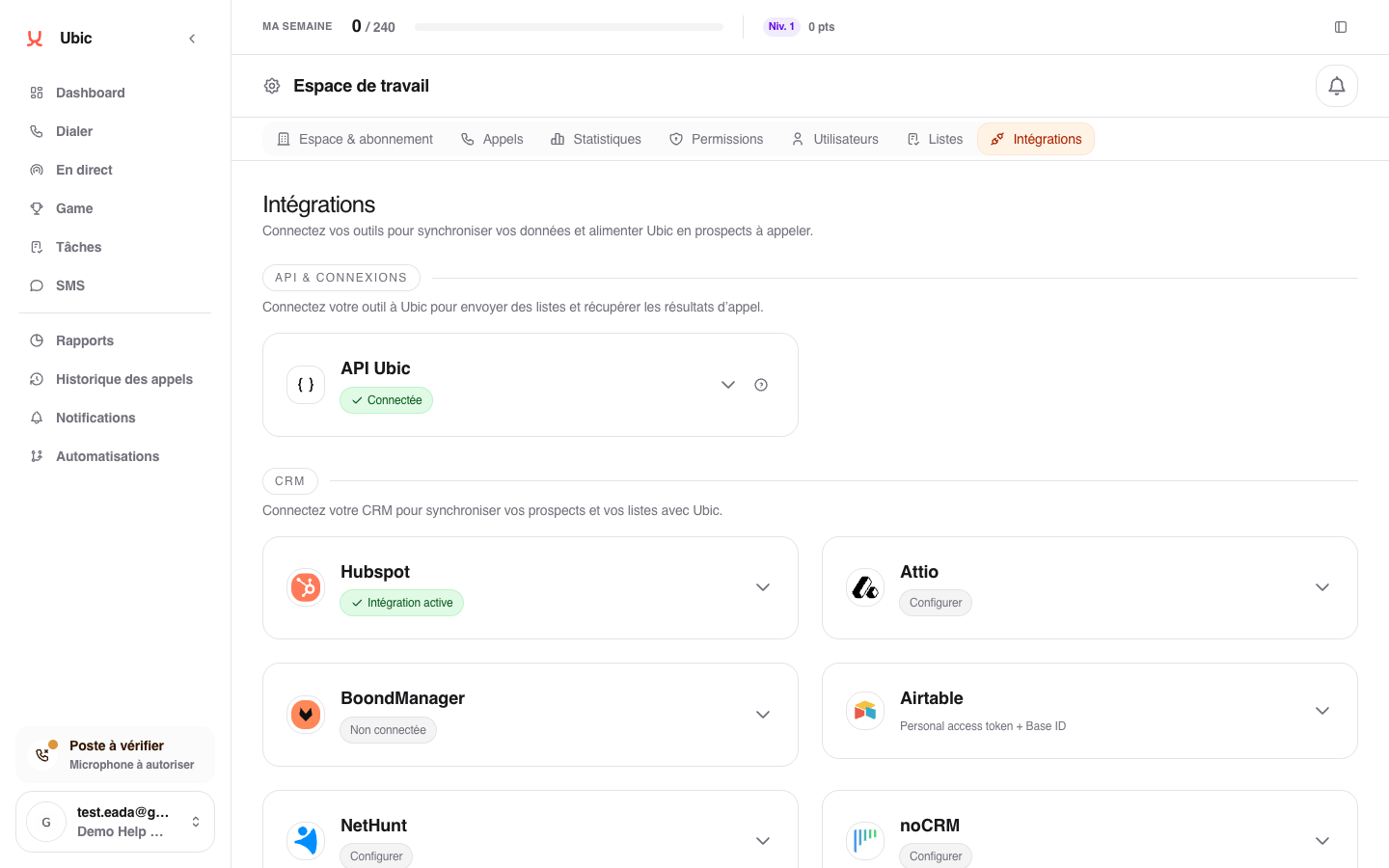
Open Settings > Integrations > Airtable in Ubic.
Paste the Airtable Personal Access Token.
Enter the Airtable Base ID.
Click Save.
Once connected, Airtable tables and views become available when creating a list.
To keep the call attempts from your Airtable lists in Airtable:
Return to the Airtable card and click Configure.
Select a compatible existing table as the destination.
Click Save.
A table is compatible when it contains the columns shown on the page. Ubic recognizes them automatically and keeps their IDs if you rename them later.
If no table is suitable, click Create the recommended table. Ubic creates and selects a table named Historique des appels Ubic with Contact, First name, Last name, Email, Company, Phone, Date and time, Direction, Outcome, Duration, Agent, Recording, and Lead record columns.
The Contact column can be replaced with an Airtable formula. If the history table contains a linked-record field pointing to the source lead table, Ubic also links each new call row to the correct record automatically.
You can import an entire Airtable table. You can also select a view to import only the records filtered in Airtable.
When creating the list, map at least the phone number. Then map the name, email, company, job title, notes, and each custom field you want to display or update in Ubic.
When a Notes field is mapped, its content prefills the lead note while that note is empty in Ubic. A non-empty note edited in Ubic updates that Airtable field. Later reloads preserve any note already entered or edited by a user in Ubic and never clear the Airtable field automatically.
Linked record and lookup fields can also be selected for import. Ubic imports their label and never their technical ID.
When an editable Ubic field is mapped to an Airtable link intended for a single record, Ubic looks for an exact match in the linked table. A unique match is linked to the lead. For the standard Company field, Ubic can also create a missing account and link it automatically when the linked table uses an editable text field as its primary field. If several records have the same name, the link is left unchanged to avoid associating the wrong record.
The lead status can be sent back to Airtable if you select a single select field as the status field during import. The options in this field become the reference values in Ubic.
Custom fields completed in Ubic can also update the Airtable fields mapped to the list.
Once a call history table is configured, every finalized call attempt from an Airtable list adds one row to that table, including unanswered and failed attempts. When a single linked-record field points to the list's source table, Ubic uses it to associate the call directly with the lead. If the linked record no longer exists, the call is still added to the history without the relation. Ubic's internal technical IDs are not displayed in the history. Lead status and notes are not copied; they remain on the lead record.
Airtable limits API responses to 100 records per page. Ubic therefore retrieves records page by page during imports and synchronizations.
If automatic table creation fails, check that the token can access the correct base and has the `schema.bases:write` scope. If a call does not appear, make sure the selected table still exists and the token still has `data.records:write`.
