Open Automations from the sidebar.
Select an existing cycle in the left column or click New.
Members can view this page in read-only mode. Only workspace admins can change the name, situations, lists, and delays.
For a new automation:
select a first situation: a call status or a lead status;
select the value that will move the lead into the cycle;
if needed, click Add a situation to add an alternative joined by OR;
give the automation a clear name;
click Create automation.
You can remove and replace the initially suggested situation. You only need to keep at least one situation before creating the automation. The name stays empty until you choose one.
When a lead matches several situations over time, it continues in the same cycle instead of restarting at Phase 1.
Open the automation from the left column. You can then change its name, add or remove situations, and save them with the rest of the cycle.
If you delete every automation, the page returns to an empty state. Ubic does not recreate a template cycle automatically.
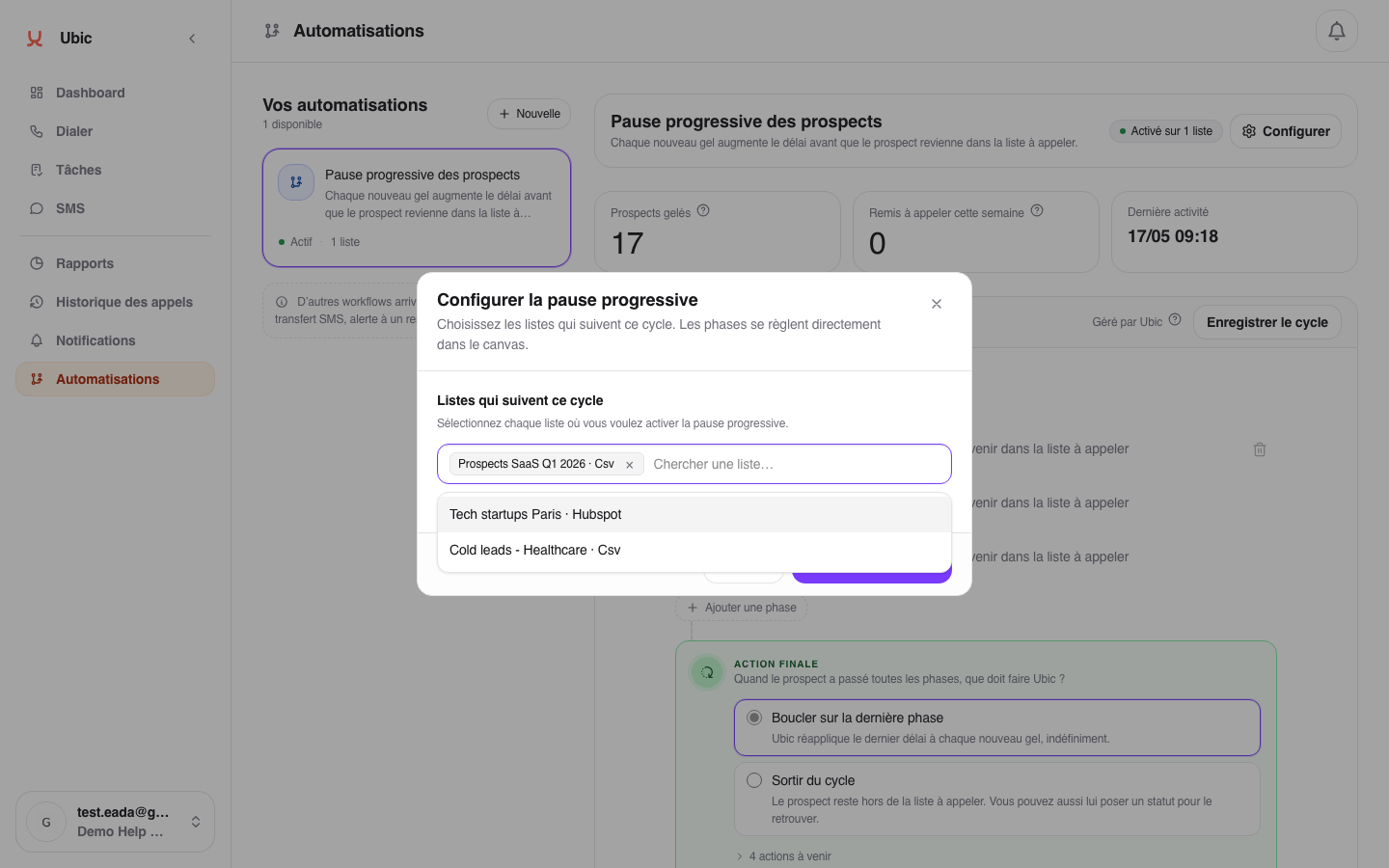
Expand the Applies to… section, then select the lists that should follow this cycle.
If a list already contains frozen leads, Ubic may offer to add them to the cycle immediately. You can decline. In that case, only future pauses will enter the cycle.
Enable Automatically include new lists to link future lists to this cycle. A list can follow several cycles when their triggers do not overlap. If two cycles share a trigger, the first cycle created takes priority.
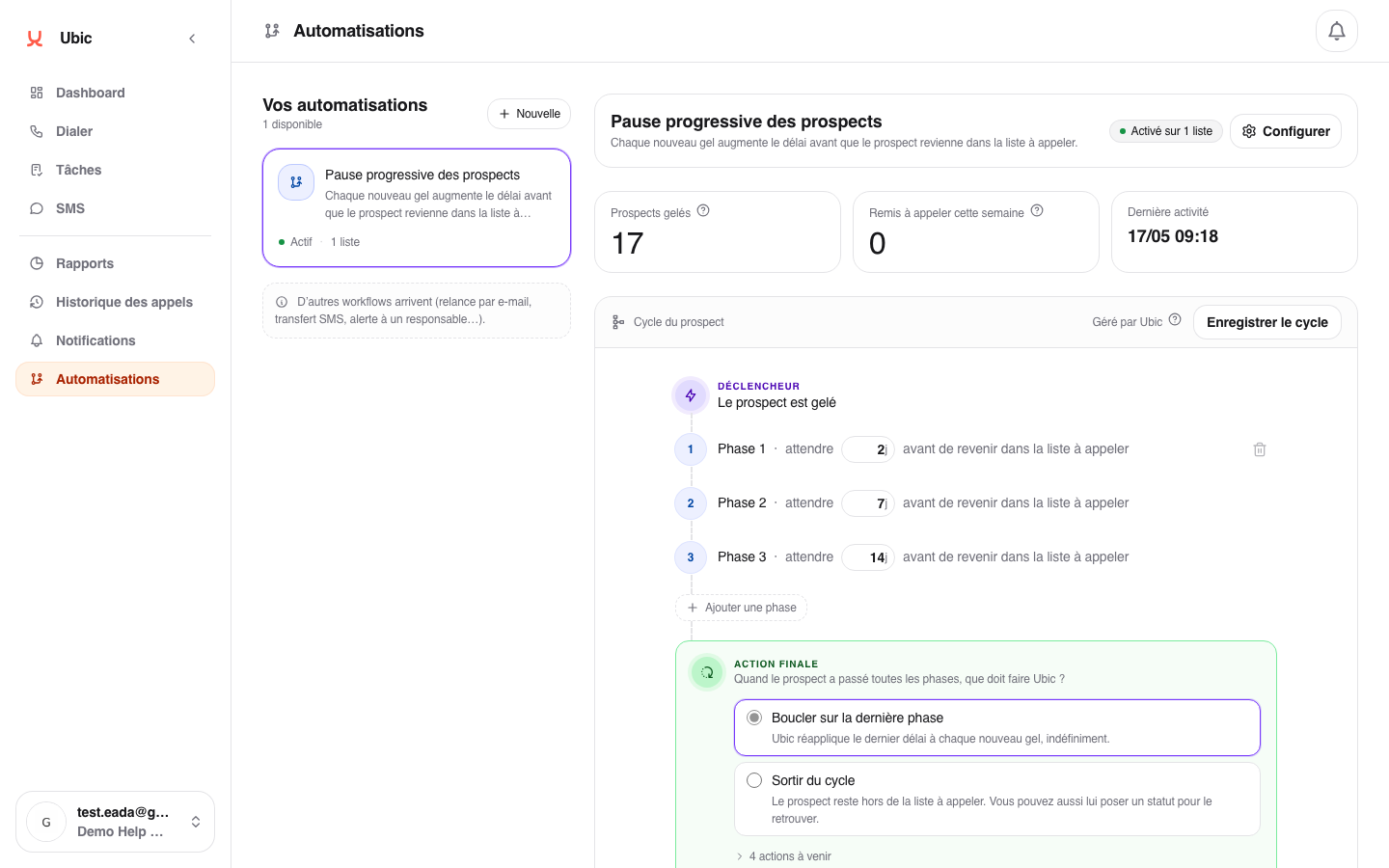
Each phase is a waiting period before the lead returns to the list to call.
You can:
change the number of days directly in the cycle;
add a phase;
remove a phase if it is no longer needed;
select the final action.
By default, Ubic loops the last phase. If the lead is frozen again after the final phase, Ubic reuses the last delay.
Click Save at the top of the cycle. This saves the name, situations, lists, delays, and final action together.
A list cannot follow two cycles that share a trigger. Ubic reports the conflict and does not move the list automatically.
If a list is removed from the workflow, leads still waiting on that list exit the cycle to prevent an unexpected automatic return.
