A NetHunt CRM account with at least one contact folder.
The email address of the NetHunt user linked to the API key.
An API key (LEGACY) with access to NetHunt folders and fields. A token created under API & MCP does not work with this connection.
To get the key in NetHunt:
Open Settings > Apps and other integrations.
Under API key (LEGACY), click GENERATE API KEY if you do not already have a key.
Confirm with GENERATE LEGACY KEY in the window that opens.
Copy your existing key or the one you just created.
Use the email address for the same NetHunt account. The NetHunt documentation describes this connection using an email address and an API V1 key.
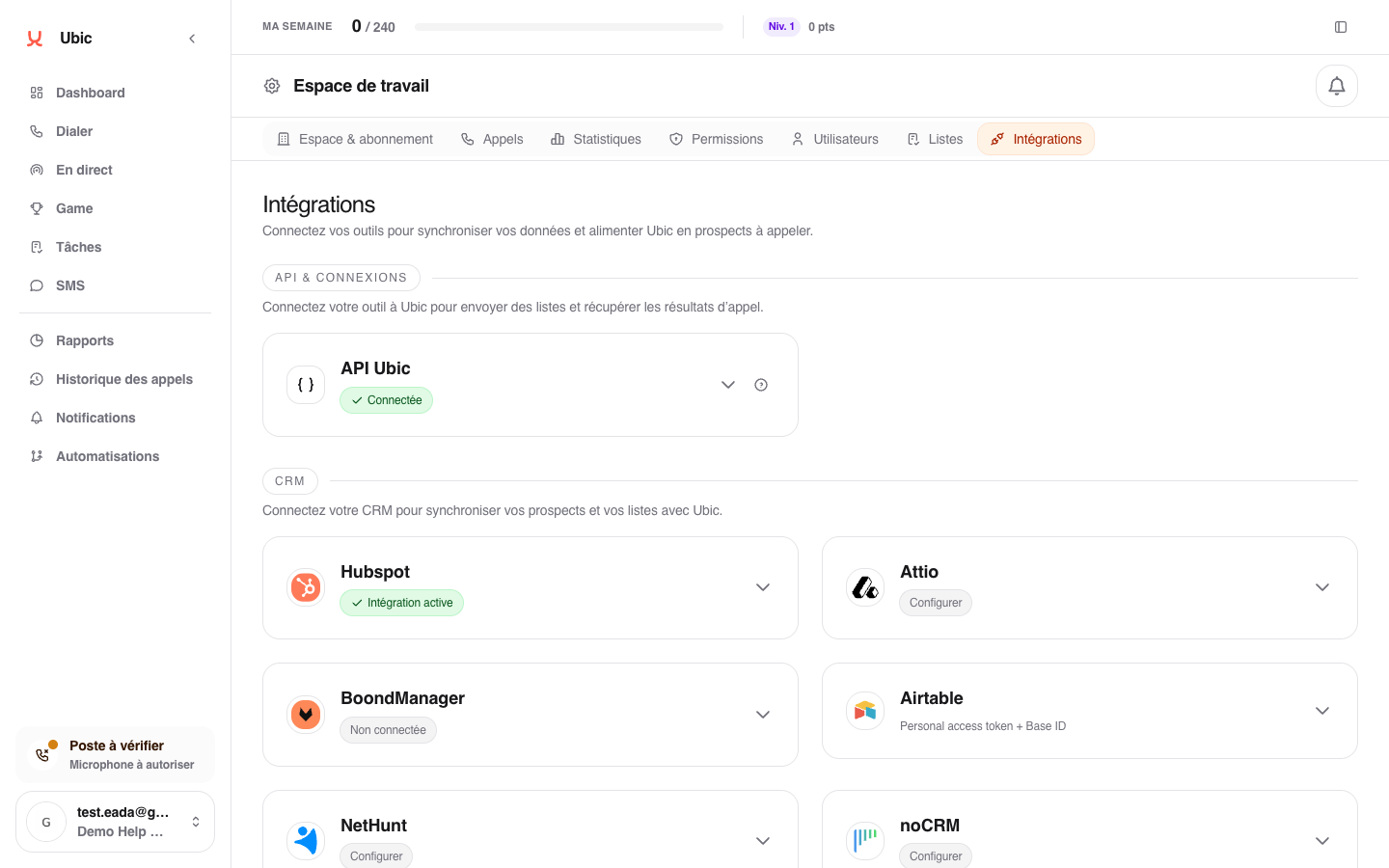
Open Settings > Integrations > NetHunt.
Enter the NetHunt email address in the corresponding field.
Paste the API key into NetHunt API key.
Click Save.
Create a list in Ubic and choose NetHunt as the source.
Select the NetHunt folder.
Under NetHunt status field, choose the field that will receive the qualification selected in Ubic.
Map at least the phone number, then the fields you want on the lead profile: name, email, company, or notes.
To import only part of the folder, add one or more filter groups.
Click Calculate preview to check which records can be imported before saving the list.
NetHunt folders become Ubic list sources. Folder fields are available for mapping to the lead profile.
The lead status selected in Ubic updates the NetHunt field chosen for the list. However, an existing NetHunt status is not automatically copied into the Ubic lead status during import.
Notes sent from Ubic are added as comments on the NetHunt record. They do not replace the contents of the NetHunt field used to import notes.
When a sales rep connects their NetHunt account under Profile > Integrations, Ubic uses their personal credentials for their CRM updates in that workspace. Otherwise, Ubic uses the workspace’s NetHunt account. For this personal connection, the sales rep opens Profile > Integrations > NetHunt, enters their NetHunt email and the API key (LEGACY) from the same account, then clicks Save.
The NetHunt API does not let Ubic retrieve saved NetHunt views. Select the folder, then recreate the relevant conditions in Ubic.
Ubic filters work with groups of conditions. Inside each group, choose All conditions or At least one condition; across groups, choose All groups or At least one group. Available operators: is, is not, contains, does not contain, has a value, is empty, and date comparisons.
The preview shows:
the total number of records in the folder;
the number of records matching the filters;
the number of importable records;
records with a missing or invalid phone number.
The preview uses the same filter engine and phone validation as the import. An existing list that uses an advanced NetHunt query keeps that query until you choose to replace it with Ubic filters.
The connection is refused: check that the email address and API key (LEGACY) belong to the same NetHunt account. Do not paste the API & MCP token.
The folder or its fields do not appear: check that the NetHunt account connected to the workspace has access to that folder, then refresh the folder list.
A record is missing from the import: check the exclusions in the preview. Records with a missing or invalid phone number are not imported.
You cannot create the list: select a NetHunt status field. This field is required. Labels displayed to sales reps can then be renamed under Settings > Calls.
If a NetHunt user has no matching user in the Ubic workspace, Assigned to remains empty for the affected leads.