
Help center

Go to Ubic

Find the main pages in Ubic

The Getting started guide, at the top right next to the bell, shows your first steps one at a time: import your prospect list, try a demo session, choose your lead statuses, then make your first call (with, depending on your workspace, trial activation and a calling number). Each step's button opens the right screen, and bubbles explain each part of it; during the import, they follow the Source, Identity and Mapping screens. Move back and forth with the arrows; clicking elsewhere closes the panel. Start the guided tour takes you through the pages you use every day in one minute. Skip the guide removes it from the screen; reopen it from your account menu with Getting started guide.

The sidebar lets you move quickly between calls, follow-up, SMS, and activity tracking.

Pages used every day

  • Dashboard: resume a list or a priority task.

  • Dialer: review the leads in a list and start calls.

  • Tasks: find overdue, today's, and upcoming reminders.

  • SMS: read and continue written conversations.

  • Reports: track your activity and, when allowed, the team's activity.

  • Call history: find a previous conversation.

  • Notifications: handle a missed call or a new SMS message.
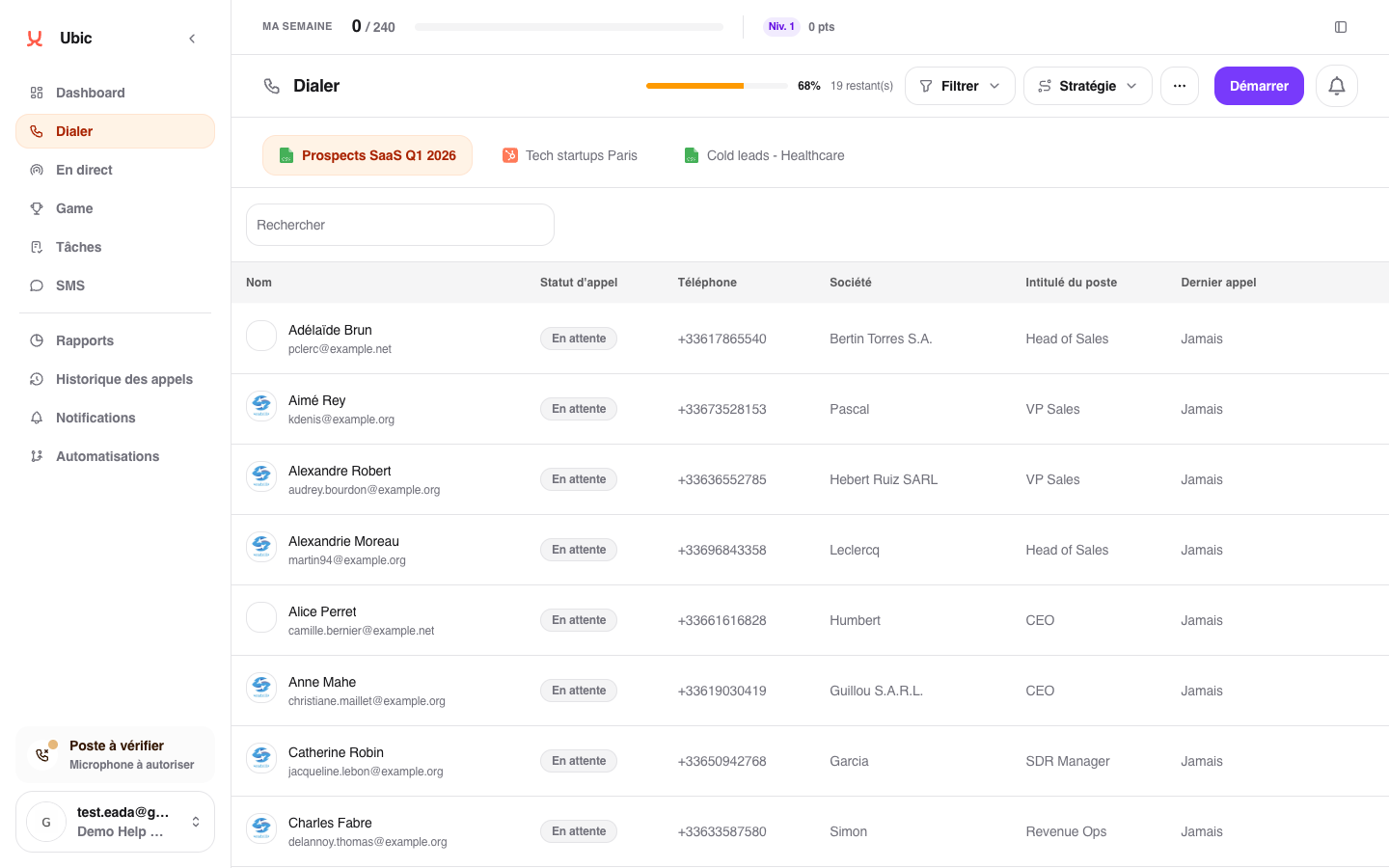
Make more room

Click the sidebar arrow to collapse it. Ubic keeps this choice on your device. On mobile, the menu opens over the page.

Administrators also see Settings to manage the workspace and Automations to control when leads return to calling lists.

Troubleshooting

If a page is missing, it may depend on your role or on a feature disabled by the administrator.

Related articles

Discover Ubic with a demo call

Understand what is shared with your team

Handle missed calls and incoming SMS messages

Did this answer your question?
😞
😐
😁