The My first steps banner guides you directly inside Ubic. One action at a time, with three steps available under My steps.
Add your prospects
Click Add my prospects. Import a file or choose a CRM source. This step is checked when a list assigned to you contains prospects with a phone number. Opening the import screen alone does not complete it.
Prepare your calls
Ubic points you to the calling number or after-call answers to configure. If your workspace starts with “Voicemail” only, your administrator can use the suggested answers or customize them under Settings → Calls. Existing team settings are reused.
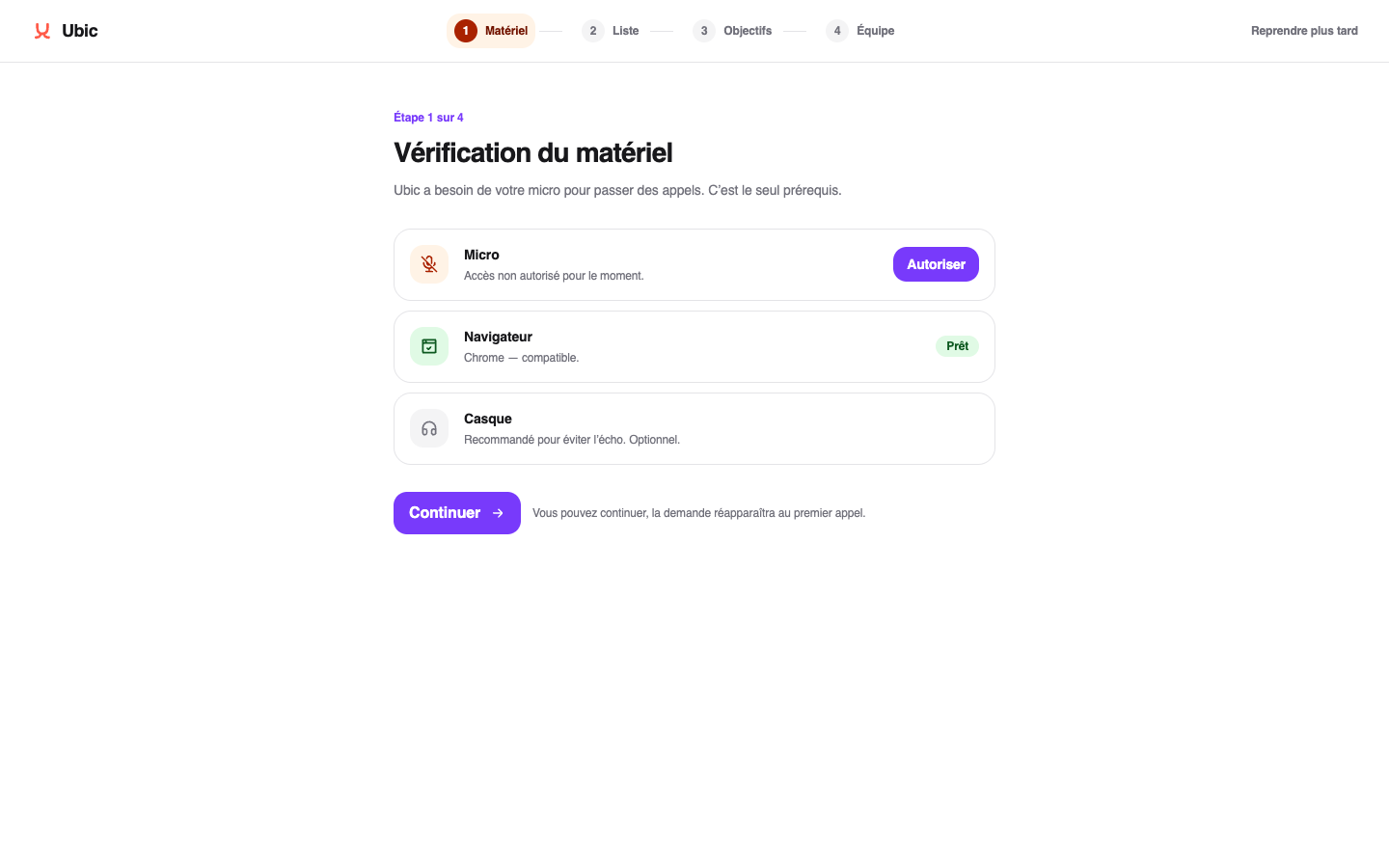
Under My steps, use Test my microphone to check your setup. This test remains useful even when your workspace settings are ready.
If you are a member, ask your administrator for a list and a number. Administrator-only settings are not offered to you.
Make your first call
Open your list, start your session and choose an answer after the call. This step is checked after a real call has ended and its answer has been saved. A demo does not count as a real call.
Set up what comes next
After your first call, Set up follow-ups takes you to automations. A rule enabled on the list can make paused prospects available for calling after a delay. It does not dial their number. For an agreed callback at a specific time, add a task to the prospect’s details.
Pick up whenever you like
Later minimizes the banner. My first steps opens it again. Closing a tip does not complete a step. Need a hand? opens the help center.