
Before you start
You must be a Ubic workspace admin. The Zoho account used for the connection must be able to view and update the Leads or Contacts modules.
You also need to know where your Zoho data is hosted, for example Europe for an account opened on `zoho.eu`. Choosing the wrong region prevents the connection.
During authorization, Ubic requests access to the Leads, Contacts, notes, views, and Zoho fields required for synchronization.
Connect and use Zoho CRM
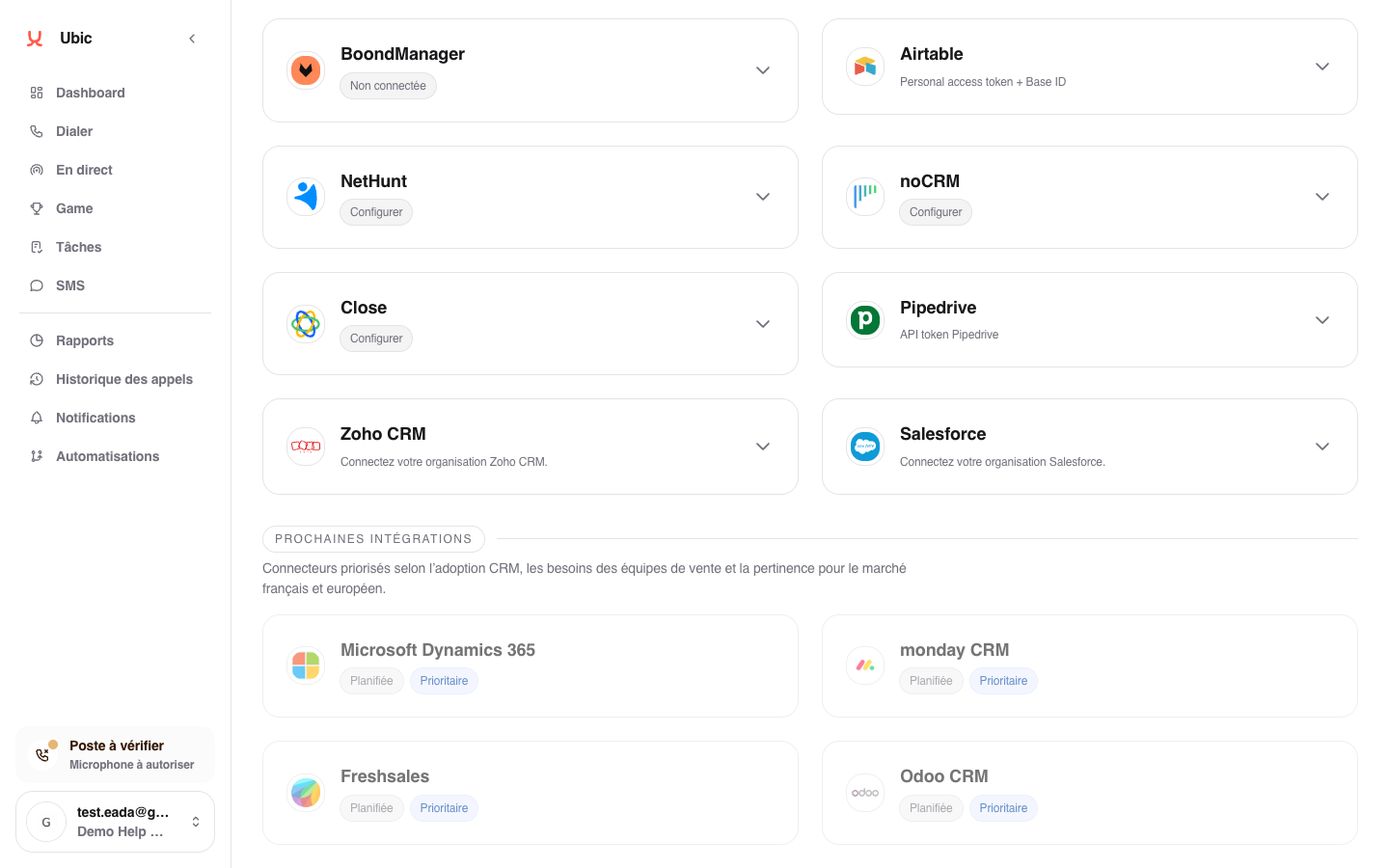
Open Settings > Integrations > Zoho CRM.
Select your Zoho data region.
Click Connect Zoho CRM.
Sign in to Zoho and approve the requested permissions.
Back in Ubic, check that the integration is shown as active.
You can then create a list from the dialer:
Click Create a list, then choose Import from Zoho CRM.
Select a view from the Leads or Contacts module.
Check the mapping, especially the phone field and the field that will receive the lead status.
Finish creating the list.
Notes and call information are added to the Zoho record. Lead status and fields edited in Ubic are sent to the fields selected during mapping. Under Configure, you can also choose to add outbound SMS messages to CRM activity.
Changes made directly in Zoho appear in Ubic after the list is reloaded, not immediately.
Troubleshooting
If Zoho rejects the connection, check the selected region and the account’s permissions for the Leads or Contacts modules.
If a view is missing, check that it belongs to one of these modules and that the connected account can access it. Zoho campaigns are not available.
If a status is not sent back, check the field selected during mapping and the values allowed in that Zoho field.
Disconnecting Zoho stops future imports and updates. Leads that were already imported remain available in Ubic.