
1. Before you start
You need an Attio account with at least one record list and a Bearer API key generated from Workspace settings > Developers in Attio.
Attio guide: generate an API key.
2. Connect Attio
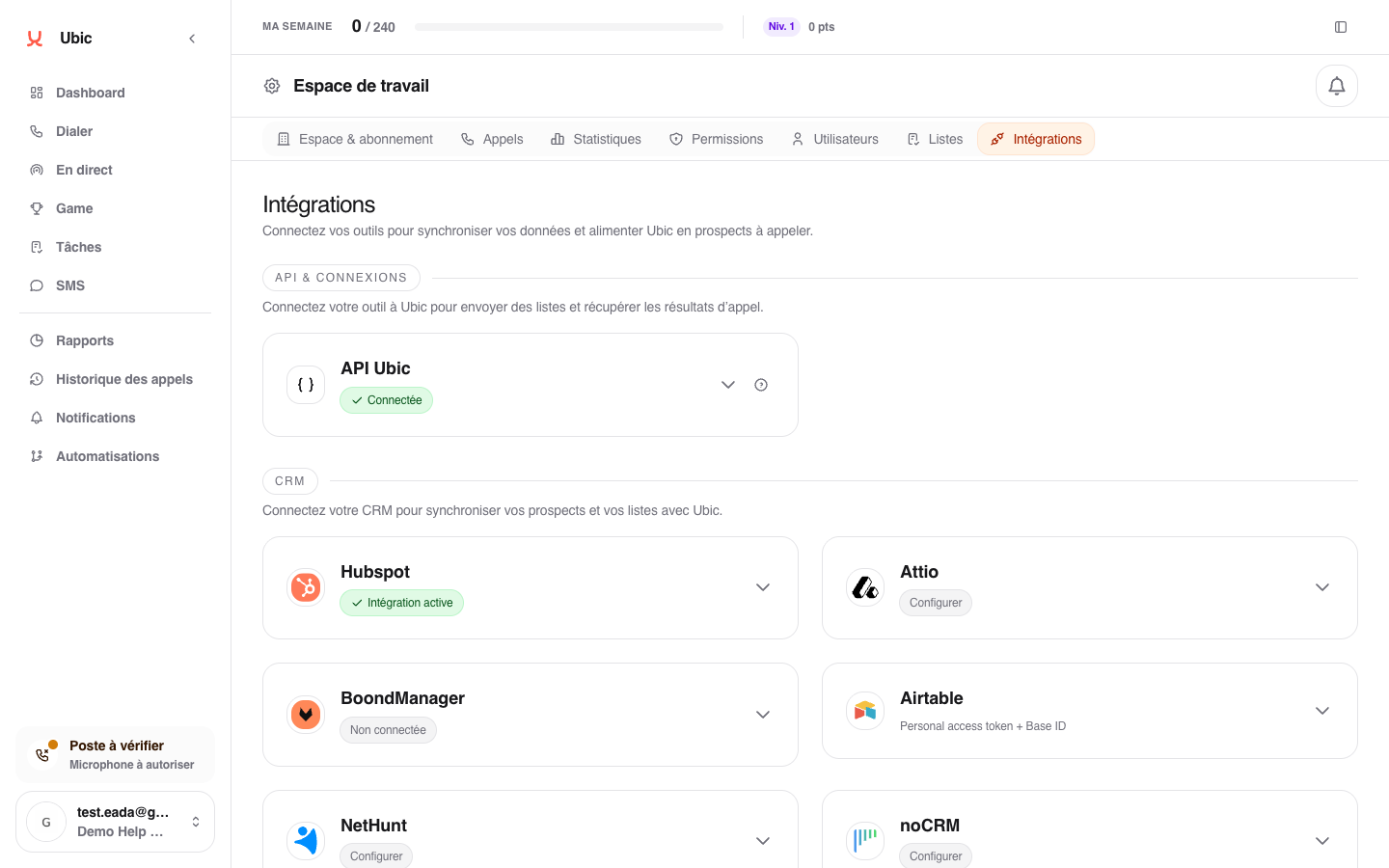
Open Settings > Integrations > Attio in Ubic.
Paste the API key into Attio API key.
Click Save.
Create a list in Ubic and choose Attio as the source.
3. What is synced
Attio lists become Ubic list sources. The main attributes are available for mapping to the lead profile.
The lead status selected after a call can update the Attio attribute chosen for the list. Call notes can also be added to Attio.
Notes
Attio is highly customizable, so check attribute names before starting the import. Selecting the wrong phone attribute can result in an empty list or a list that cannot be called.
The status field is selected when creating or configuring the Attio list in Ubic. Without a selected field, Ubic imports leads but does not update their status in Attio.