A noCRM account with API access (Expert and Dream plans) and its address, for example `mycompany.nocrm.io`.
A noCRM API key.
The Ubic integration enabled in your noCRM account’s third-party apps.
In noCRM, open Admin panel > Integrations > API & automations > API keys, click Create an API key, name it "Ubic", then copy it: noCRM only shows it once.
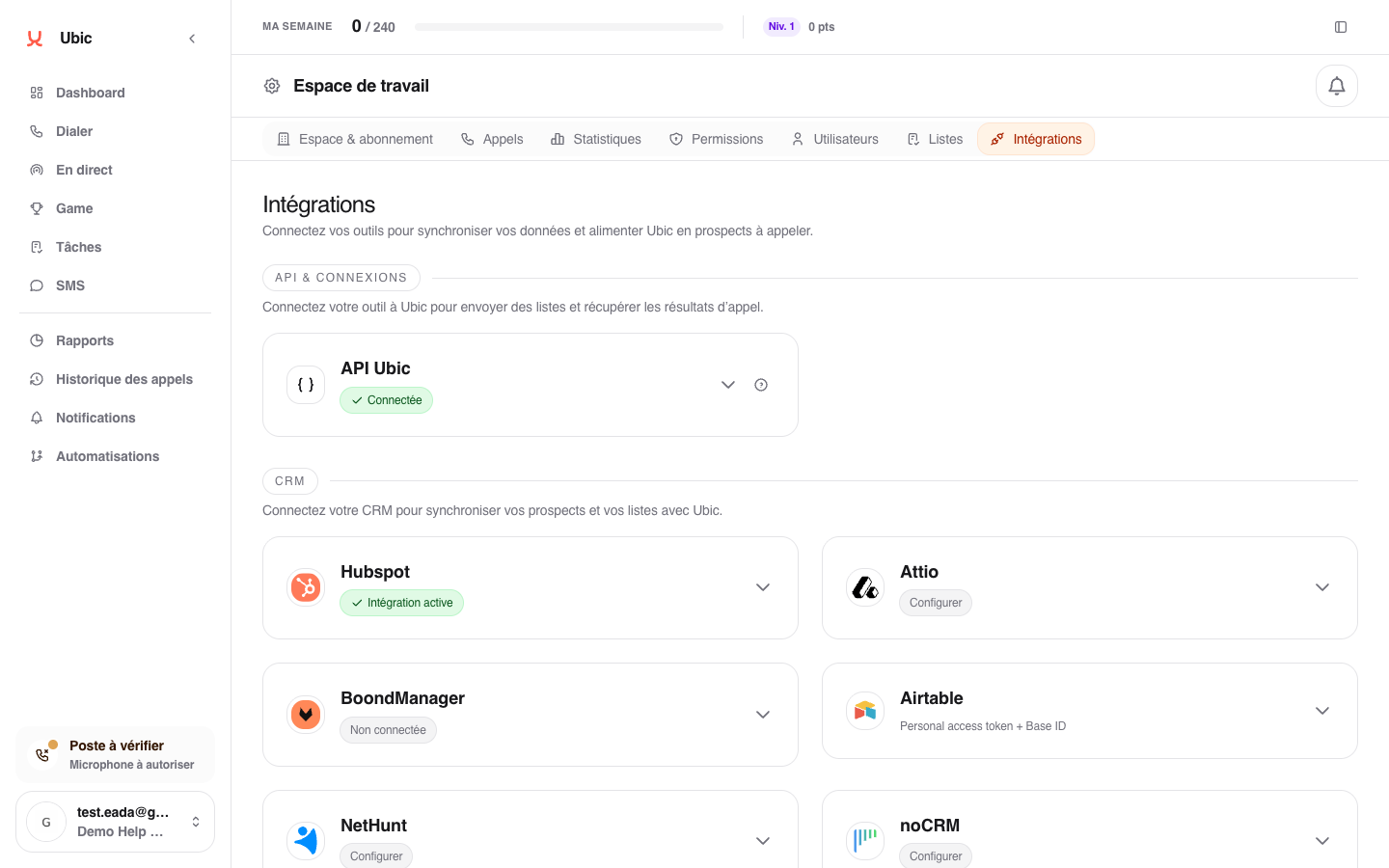
In Ubic, open Settings > Integrations > noCRM.
Enter the account address (`mycompany.nocrm.io`, or just `mycompany`).
Paste the API key, then click Save. The connection is confirmed once noCRM activates VoIP.
In the Dialer, click Create list, choose A list from your CRM, then noCRM and the prospecting list to call.
Check how the columns are matched (the phone is required), then click Create list.
Once the Ubic card is available in noCRM, open Settings > Integrations > noCRM in Ubic. If the connection is still active, click Delete. Enter the same account address and API key again, then click Save. Ubic keeps your writeback settings. Link your lists again to resume syncing.
The leads of the prospecting list become an Ubic list, with the columns you matched. The list is refreshed every night, or on demand with Reload from noCRM in the list menu.
If several sales reps share the file, open Filter this list by SDR when checking the columns. Choose the assignment column, such as Assigned to, then select one or more names in Values to import. Ubic applies the same selection on import and each time you reload the list.
In Settings > Integrations > noCRM > Configure, the What Ubic writes to noCRM section lets you choose:
Calls: each call is added to the lead's history as Answered or Unanswered, with its duration and a link to the recording.
Status and note: the status chosen after the call and the note are added as a comment.
Create the opportunity: when the status counts as a conversion (for example "Meeting booked", set in Settings > Calls > Conversions), the lead becomes a noCRM opportunity with all its details.
Sent SMS: each SMS is added as a comment. This choice requires "Status and note".
The first-ever noCRM connection for a workspace turns the first three choices on; text messages stay off until you turn them on. If an older connection has no writeback settings, open Configure to choose what Ubic sends.
Once VoIP is active, calls appear in noCRM history with their direction, outcome and a link when a recording is available. For noCRM to accept the call, the salesperson’s email address must match a noCRM user and the lead’s number must be in international format.
Nothing is deleted or overwritten in noCRM: Ubic adds calls or comments and creates the opportunity, without changing your pipeline steps.
If noCRM refuses VoIP activation, check that the Ubic card is available under Admin panel > Integrations > Third-party apps in your account. If the card is missing, contact noCRM to enable the integration.
The standard noCRM CRM API applies an account-wide daily quota to imports and lead updates. Connections with VoIP enabled use the VoIP API to log calls. Attempts cancelled because another lead answered stay in Ubic.
If noCRM refuses the key (key deleted or disabled), the noCRM card shows Connection to restore and nothing more is sent. Save a new key: sending resumes for the next calls; those made during the interruption are not replayed.
A voicemail left on an answering machine counts as an unanswered call.
If noCRM refuses a write on a lead (for example because the lead or its prospecting list was deleted), Ubic pauses its updates to that lead for 24 hours.
Only leads imported from noCRM are affected. CSV lists or lists from another CRM stay in Ubic.