
Create the connection
Open Settings, then Integrations.
Under Ubic API, click Create a key.
Click Copy, then add the key to the tool you want to connect.
Close the window after saving the key in your tool.
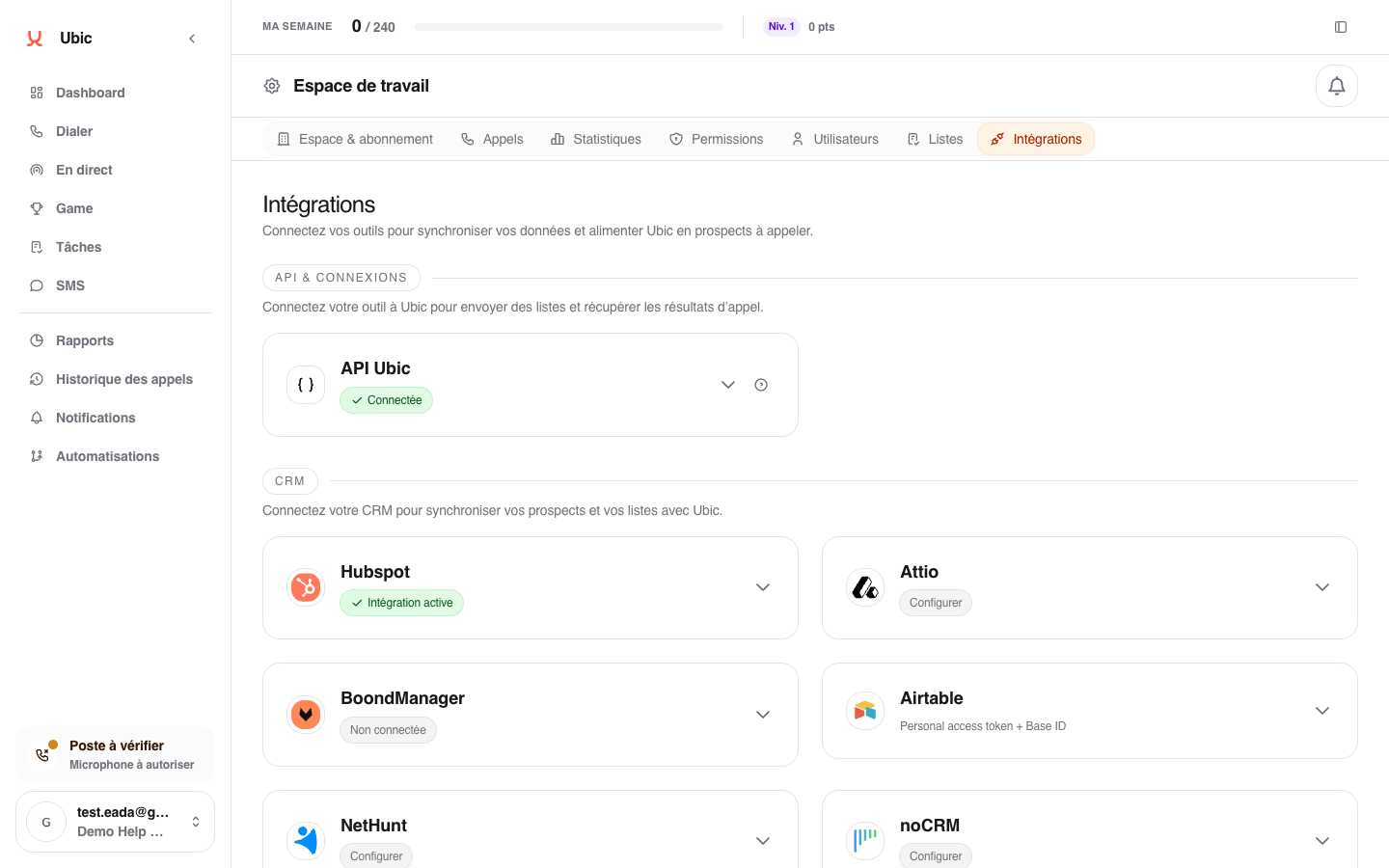
The full key is shown only once. Ubic displays the latest successful connection directly on the Ubic API card.
The Partner API documentation covers requests to prepare a calling session, retrieve results, and create or read tasks. Your team then starts the calls in Ubic.
To connect an AI assistant, use your Ubic account authorization instead: that connection does not require an API key.
Replace or disable the key
Replacing the key immediately cuts off tools still using the previous one. Prepare to update those tools, then click Replace key. The new key is shown once.
To remove access completely, click Disable. Connected tools can no longer send lists or retrieve results.
Troubleshooting
If you closed the window before copying the key, click Replace key, then update every connected tool with the new key. The previous key stops working immediately.
If your tool receives a missing-permission error for tasks, your key may predate their addition to the API. Replace it under Settings > Integrations > Ubic API, then update the connected tools.