
Generate the note
After the call, find the Note field in the lead follow-up.
Click Generate an AI note once.
Keep the window open while it loads, then review the suggestion.
Correct any inaccurate names and add missing commitments or next steps.
Click Save and continue with the rest of the follow-up.
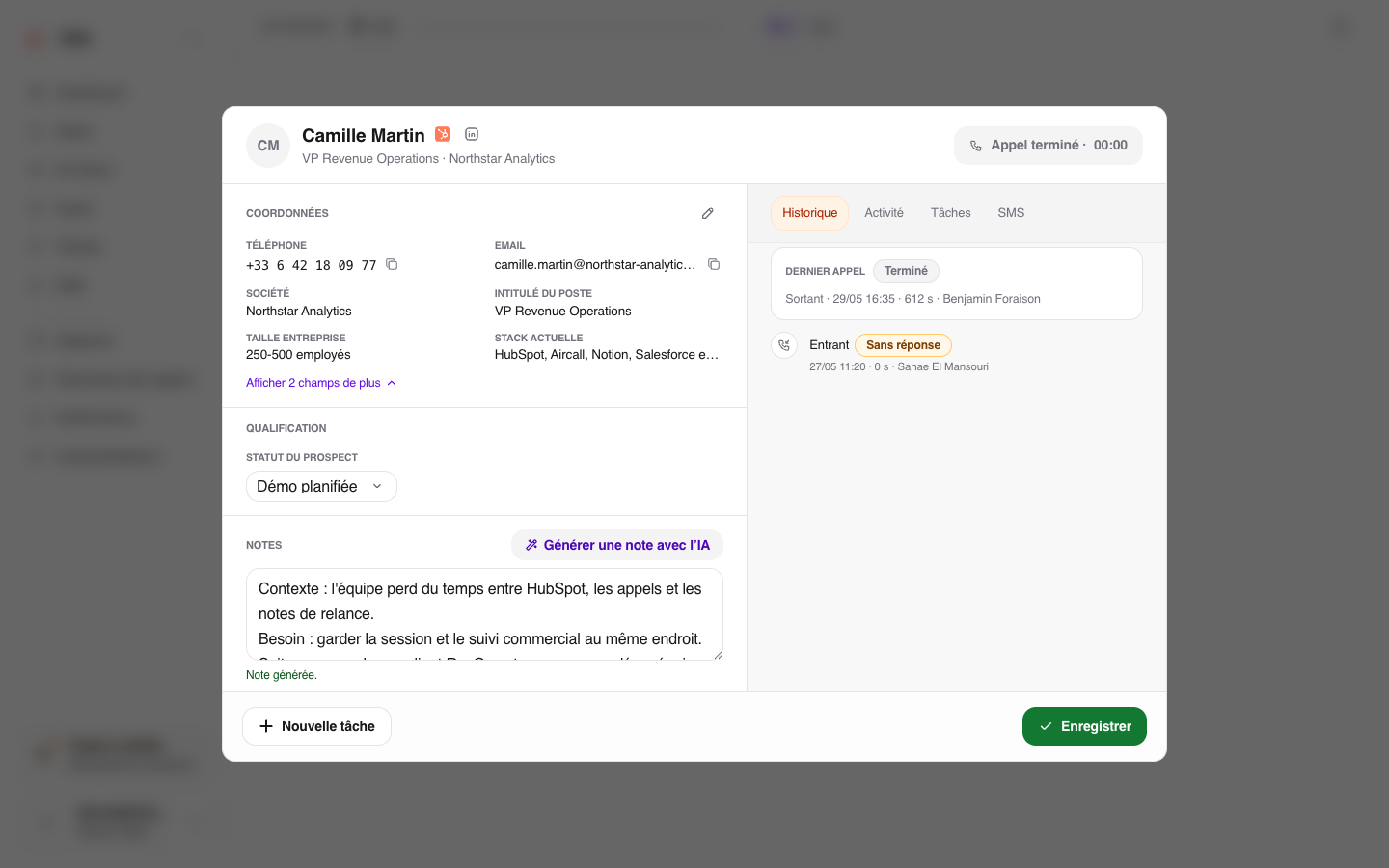
If the transcript is still processing, Ubic waits for it and then generates the note automatically. The button keeps showing its loading state: you do not need to click again. You can keep typing in the Note field; the suggestion is added to your text.
This also works in the lead detail window. The suggestion builds on your note without replacing your judgment about the conversation.
Troubleshooting
If Ubic says the transcript is taking longer than expected, try again after a short wait. Closing the window cancels the wait for generation.
If no usable recording is available, write the note yourself. If the action is missing or disabled, ask an administrator to open Settings > Calls > During the call and check that Call recording and transcription and AI-generated notes are enabled.