
1. Before you start
A Gong account with API access.
For manual connection only, your Gong credentials: Gong API base URL (which depends on your region), Gong access key, and Gong access key secret.
The email address of each sales representative making calls must exist in Gong so Ubic can match the Ubic user to the Gong user.
For the manual method, create the credentials from Admin center > Settings > Ecosystem > API in Gong, then copy the access key and access key secret. Gong guide: get API access.
2. Connect Gong
With a Gong account
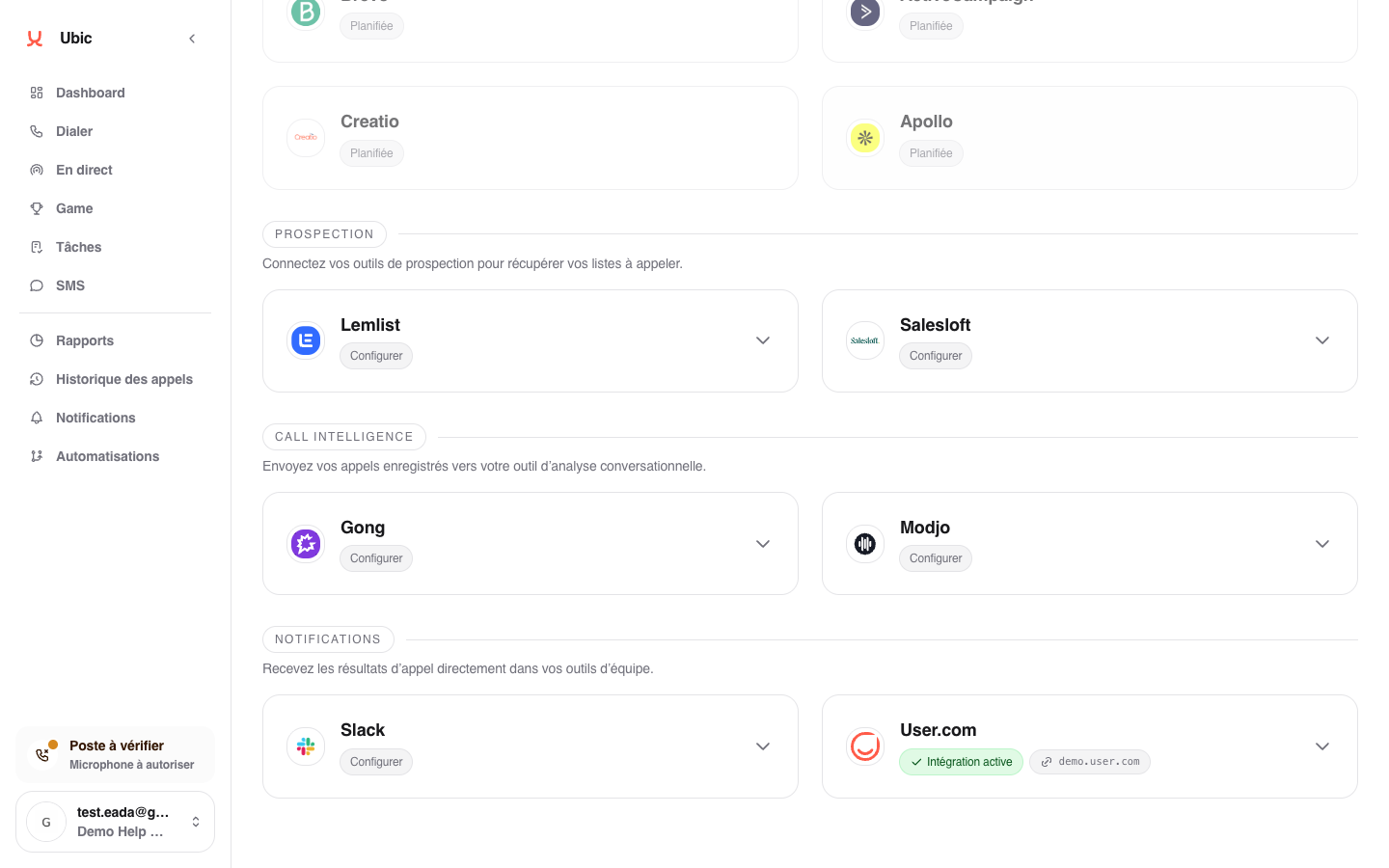
When Connect Gong is available under Settings > Integrations > Gong, a Gong tech admin can authorize the connection. Ubic only requests access to read users, to match the sales rep, and to add recorded calls.
Click Connect Gong.
Choose the correct Gong instance and authorize access.
Return to Ubic and check that Gong is connected.
Authorization covers the Gong organization. Existing API keys keep working: no automatic migration takes place. To change methods, explicitly disconnect the current connection, then choose the new one.
With API keys
Open Settings > Integrations > Gong in Ubic.
Enter the Gong API base URL, Gong access key, and Gong access key secret.
Click Save.
3. What is sent
For each call recorded in Ubic, the recording link is sent to Gong with the call context: lead, sales rep, and duration. Gong then retrieves the audio.
Synchronization is one-way, from Ubic to Gong. Nothing is sent back from Gong to Ubic.
Good to know
If Gong cannot find the Ubic sales representative's email address, the call is not sent. Check that email addresses match on both platforms.
Only recorded calls are included. Calls without a recording are not sent.
Disconnect or reconnect
Use Reconnect Gong to authorize the same instance again. Use Disconnect Gong to stop the connection in Ubic; the tech admin can also remove the app in Gong.
If the authorization request expired or the connection changed during authorization, start again from settings.