
1. Before you start
A NetHunt CRM account with at least one contact folder.
The email address of the NetHunt user linked to the API key.
An API key with access to NetHunt folders and fields.
Generate the key from the integration or API settings in NetHunt. NetHunt documentation: use the Integration API.
2. Connect NetHunt
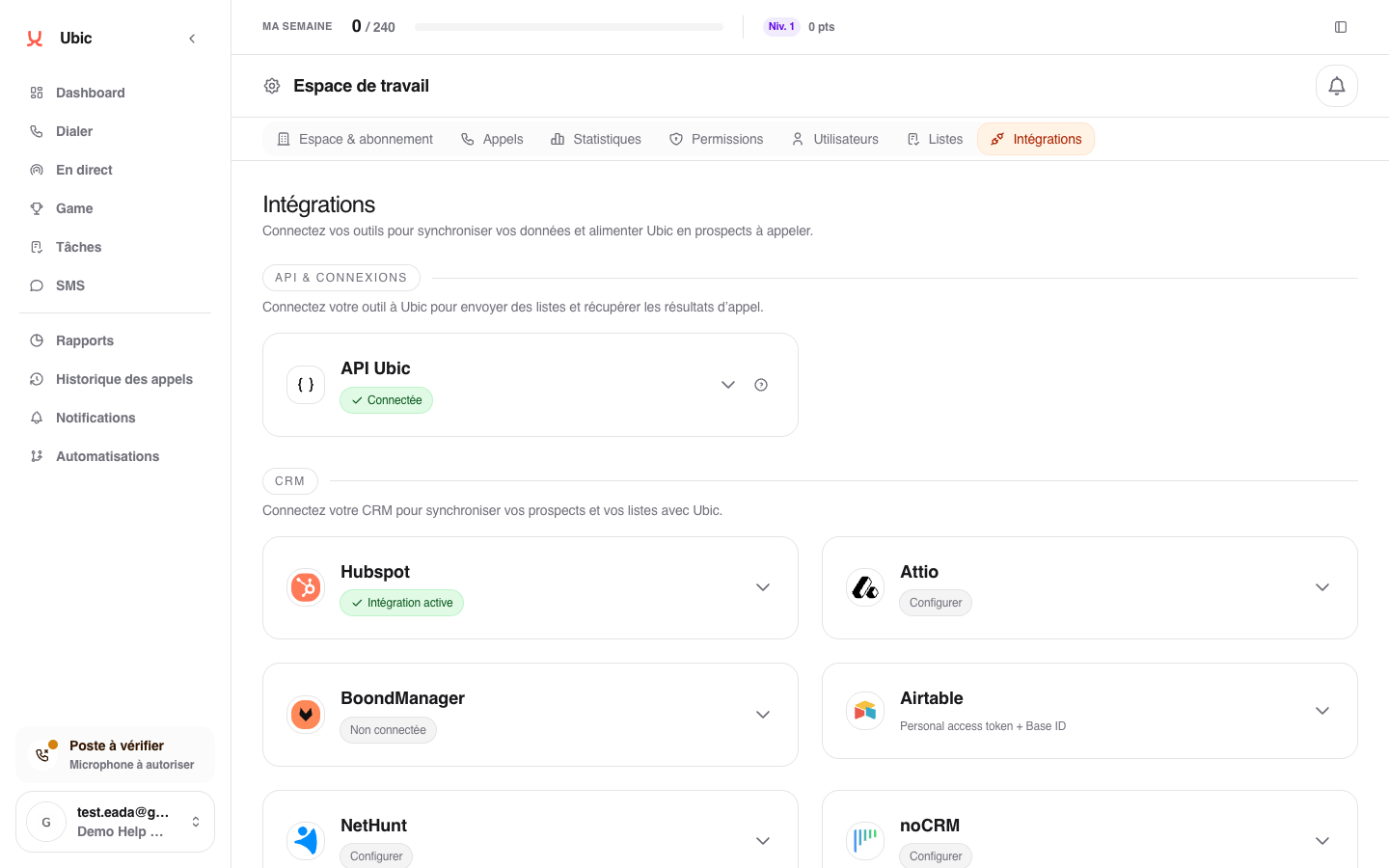
Open Settings > Integrations > NetHunt.
Enter the NetHunt email address in the corresponding field.
Paste the API key into NetHunt API key.
Click Save.
Create a list in Ubic and choose NetHunt as the source.
Select the NetHunt folder, then the NetHunt field that Ubic will update after a call.
Map at least the phone number.
To import only part of the folder, add one or more filter groups, then click Calculate preview before saving.
3. What is synced
NetHunt folders become Ubic list sources. Folder fields are available for mapping to the lead profile.
The lead status selected after a call updates the NetHunt field chosen for the list. Call notes can also be added to NetHunt.
4. Filter imported records
The NetHunt API does not let Ubic retrieve saved NetHunt views. Select the folder, then recreate the relevant conditions in Ubic.
Ubic filters work with groups of conditions. Inside each group, choose All conditions or At least one condition; across groups, choose All groups or At least one group. Available operators: is, is not, contains, does not contain, has a value, is empty, and date comparisons.
The preview shows:
the total number of records in the folder;
the number of records matching the filters;
the number of importable records;
records with a missing or invalid phone number.
The preview uses the same filter engine and phone validation as the import. An existing list that uses an advanced NetHunt query keeps that query until you choose to replace it with Ubic filters.
Notes
A NetHunt status field is required to create a NetHunt list in Ubic. Labels displayed to sales reps can then be renamed under Settings > Calls.
If a NetHunt user has no matching user in the Ubic workspace, Assigned to remains empty for the affected leads.