From the calling page, click Create a list.
Choose your CRM as the source.
Select the list, view, or filter to retrieve.
Match the CRM information with the information used in Ubic, including the phone number.
Check the available lead status choices, then click Create.
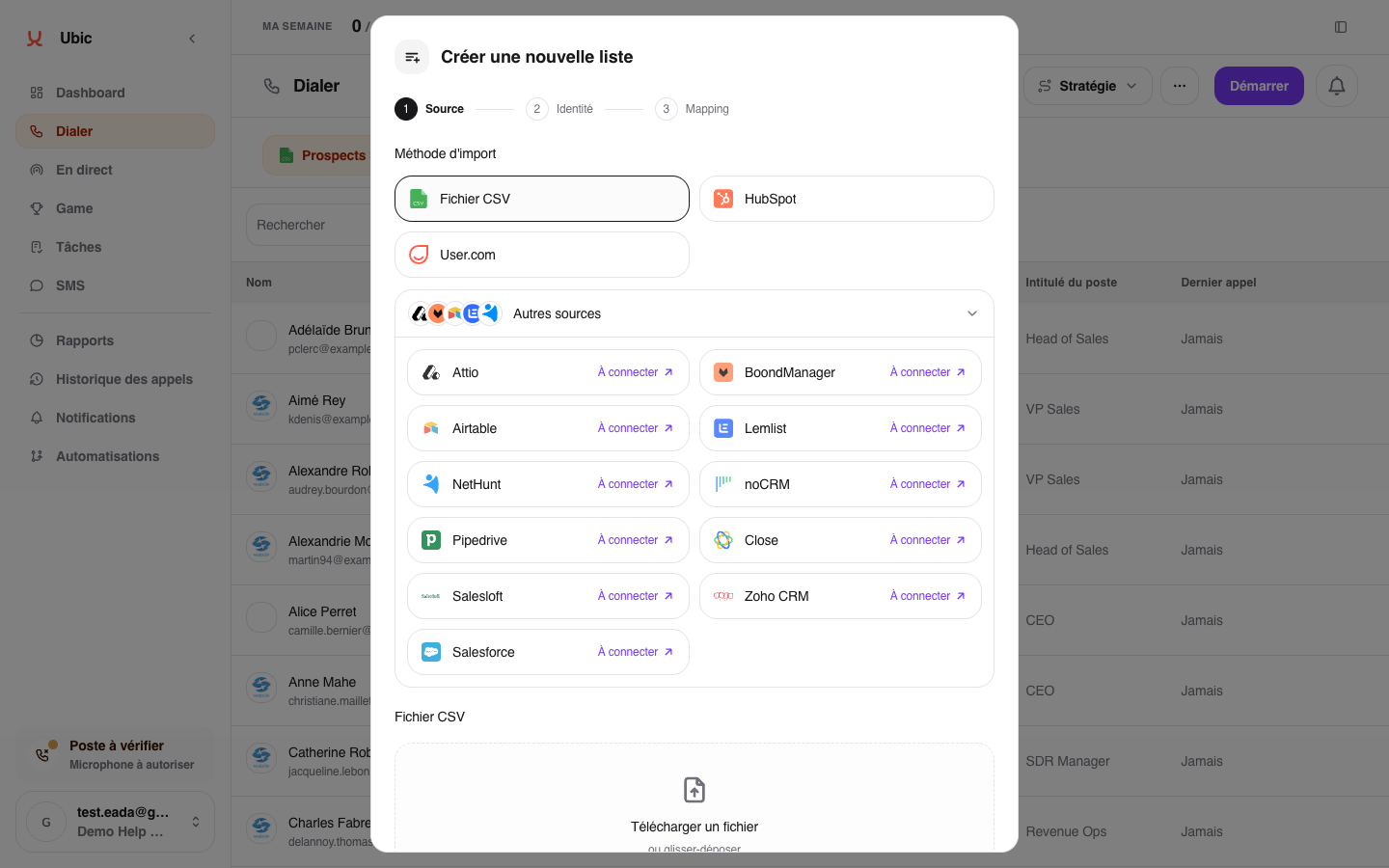
Ubic retrieves the leads in the background. You can close the window: they will appear in the list when synchronization is complete.
Use Reload in the list menu to retrieve the latest CRM changes. Synchronization options vary by CRM; see its dedicated article to learn which information Ubic sends back.
For supported CRMs, Reload also retrieves new options from the status field mapped to the list. Labels customized in Ubic are preserved.
You can download the leads currently in Ubic using Export to CSV in the list menu. The CRM remains the synchronization source.
After a successful reload, Ubic may keep a worked contact for follow-up while showing Removed from CRM list. Its qualification, notes and history remain available, but it leaves that list's automatic prospecting queue. Pending follow-up cycles are paused; a cooldown cannot put it back in the queue.
This removal is separate from lead qualification and is not sent back to the CRM. It does not mean the contact was deleted from the CRM or that manual follow-up is prohibited.
If the CRM puts the contact back in the same source, a successful reload may clear this removal. Qualification and call state are preserved: a Customer does not become callable simply by reappearing in a list. Paused cycles resume with their original scheduled date, without resetting their delay, if the qualification still allows follow-up.
A failed synchronization does not confirm removal. Ubic relies on the last successful reload; CRM changes are not detected instantly. CSV imports do not have this CRM source membership.
When views are linked within the same sales process, Ubic handles moves between lists in the background. After every view has completed a successful synchronization, a record absent from its previous source can move to a single compatible destination. It keeps its identity, qualification, notes, tasks and follow-up deadlines. Previous calls remain attributed to their original list. Contact details are updated by the next ordinary reload of the destination list.
A different owner, different qualification rules or workflows, several destinations, a prepared call or a pending CRM write blocks reassignment. The reason appears on the record. The contact remains outside its previous automatic queue while blocked. An error or a CRM connection change requires new complete observations.
Independent campaigns remain separate, particularly HubSpot campaigns with separate deals. Ubic does not merge contacts by phone number or email. The CRM remains responsible for selecting prospects and excluding customers.
If a contact appears in a new CRM view but remains removed from its previous Ubic list after both lists have been reloaded, contact support with the names of the two lists.
Ask an administrator to check the connection in Settings > Integrations and confirm that the list or view exists in the CRM.
