
Before you start
Your file must contain one lead per row and a first row with column names. At least one phone number column is required. UTF-8 is recommended to preserve special characters.
Import the file
From the calling page, click Create a list.
Choose CSV, then select the file on your computer.
Check the preview: each piece of information should appear in its own column.
Click Continue to match the file columns with the information used in Ubic.
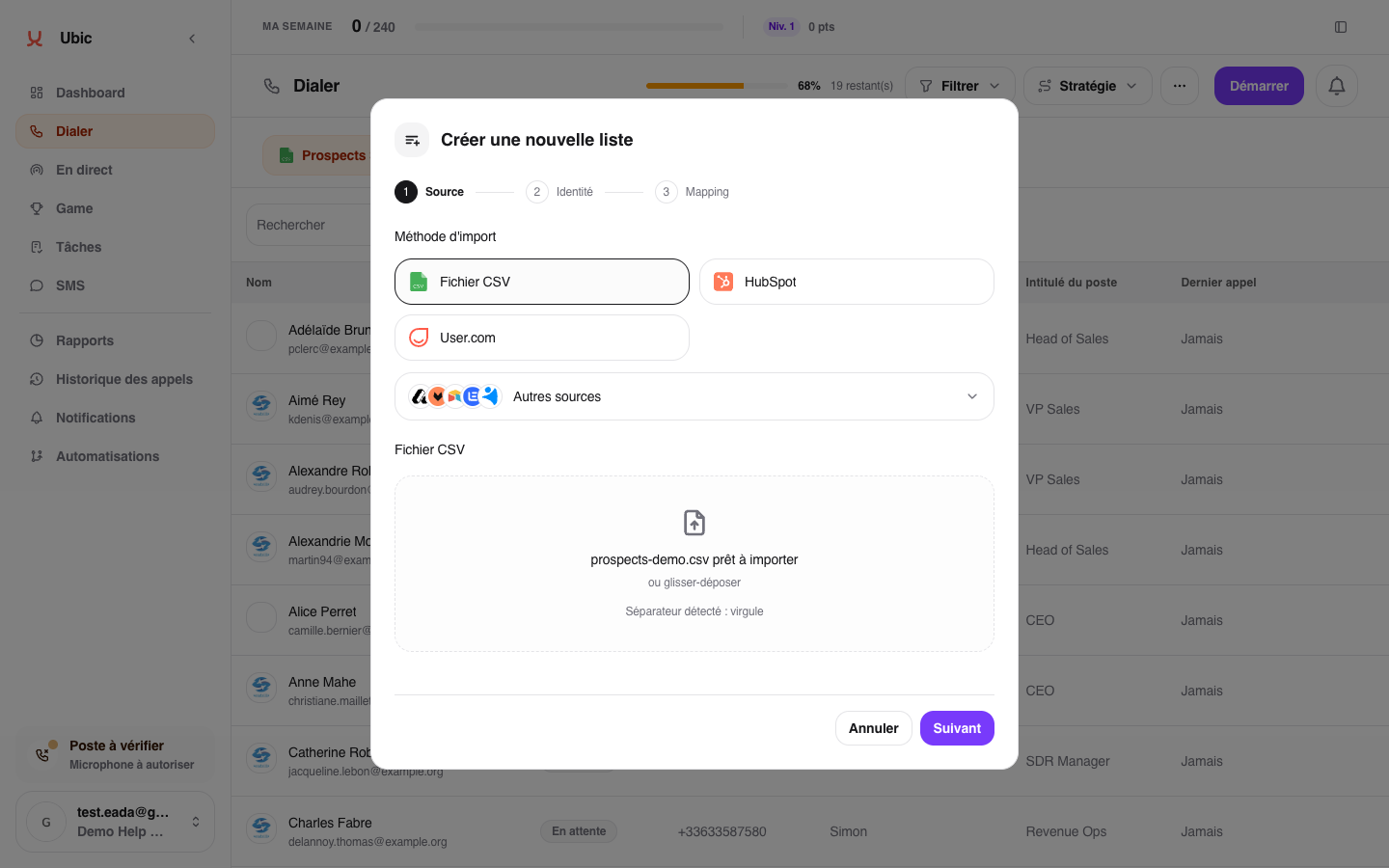
The list is created after you confirm the next step. If you leave before confirming it, no leads are added.
Keep the status you already know
If your file already shows where each lead stands, for example "Interested", "Call back" or "Not interested", pick that column under Lead status. This is optional: for leads you have never called, leave it on Do not import.
Ubic matches each value with an existing status, ignoring case and accents. Unknown values are added to the list's qualification options, and the message shown at the end of the import lists them.
If the preview is incorrect
Save the file again as a UTF-8 CSV.
Check that the first row contains column names.
If all data appears in one column, change the separator when exporting from your spreadsheet.